All features

Cloudesk Projects & timesheets

Plan the work, log the hours, bill the client.

For agencies, studios, consultants and anyone who sells their time. Give every project a board, milestones and a team with their own rates; log hours on a weekly timesheet or with a timer; approve the week; and turn approved hours and reached milestones into a draft invoice in your books — with each project's real cost and profit beside it.

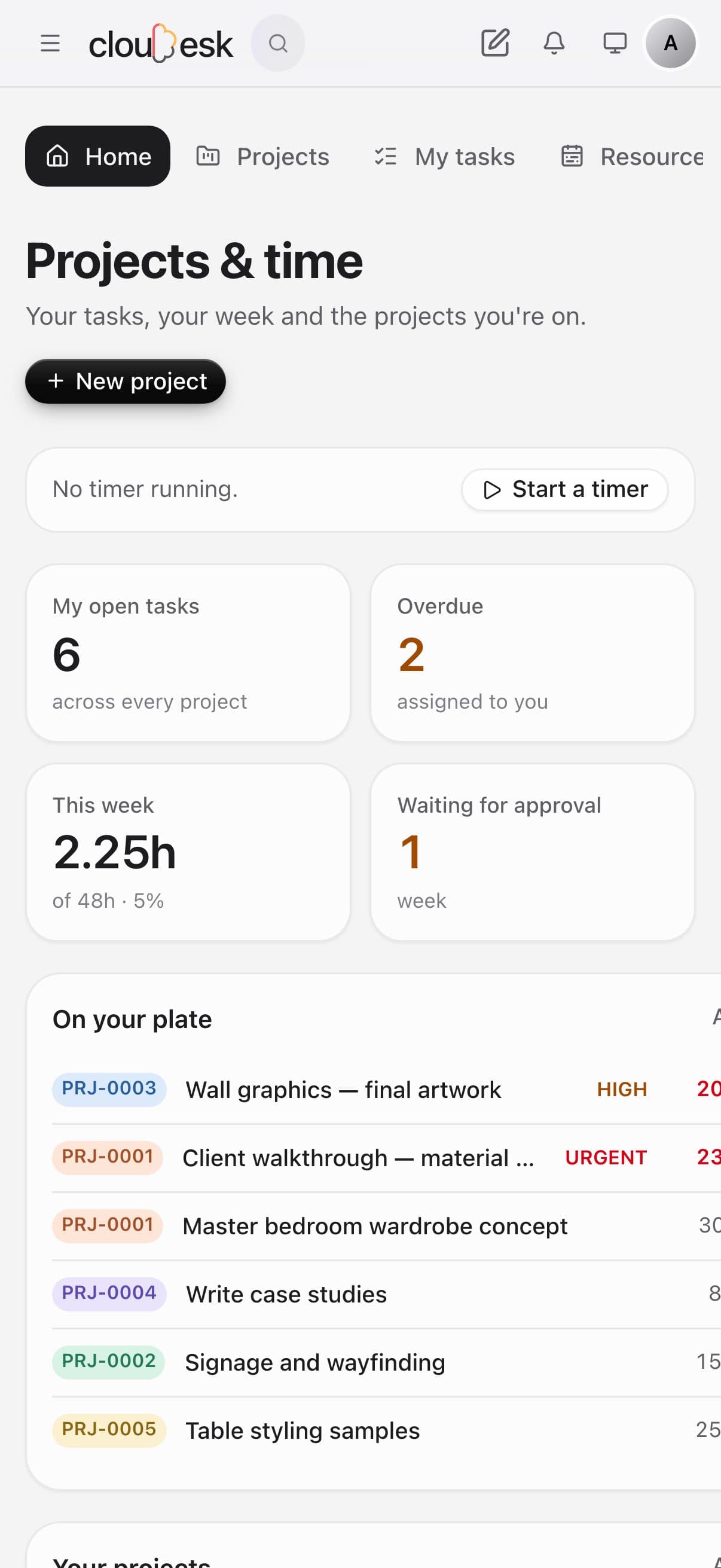
Projects and timesheets on a phone

Real screenshots from Cloudesk Projects & timesheets in a demo workspace: an interiors studio with demo clients, projects, tasks and three weeks of time, all entered through the app. The two demo teammates' past weeks were marked as sent in directly in the database, because their sign-ins weren't used; approving and billing them was done in the app.

How it works

Three steps, no surprises

  1. 1

    Start a project

    Pick the client from your invoicing books (or start straight from a won CRM deal), choose hourly, fixed-fee or in-house, and add the team with their rates.

  2. 2

    Work the board

    Tasks move across four columns you can rename, with assignees, due dates, estimates, checklists, subtasks and comments. People hear about tasks given to them by email.

  3. 3

    Log, approve, bill

    Hours go in on the weekly timesheet or a timer. Approve the week, then make a draft invoice from what's ready — one line per task, per person, or one line.

The tour

Every tool, up close.

  1. 01Home

    Your day, your week, your projects.

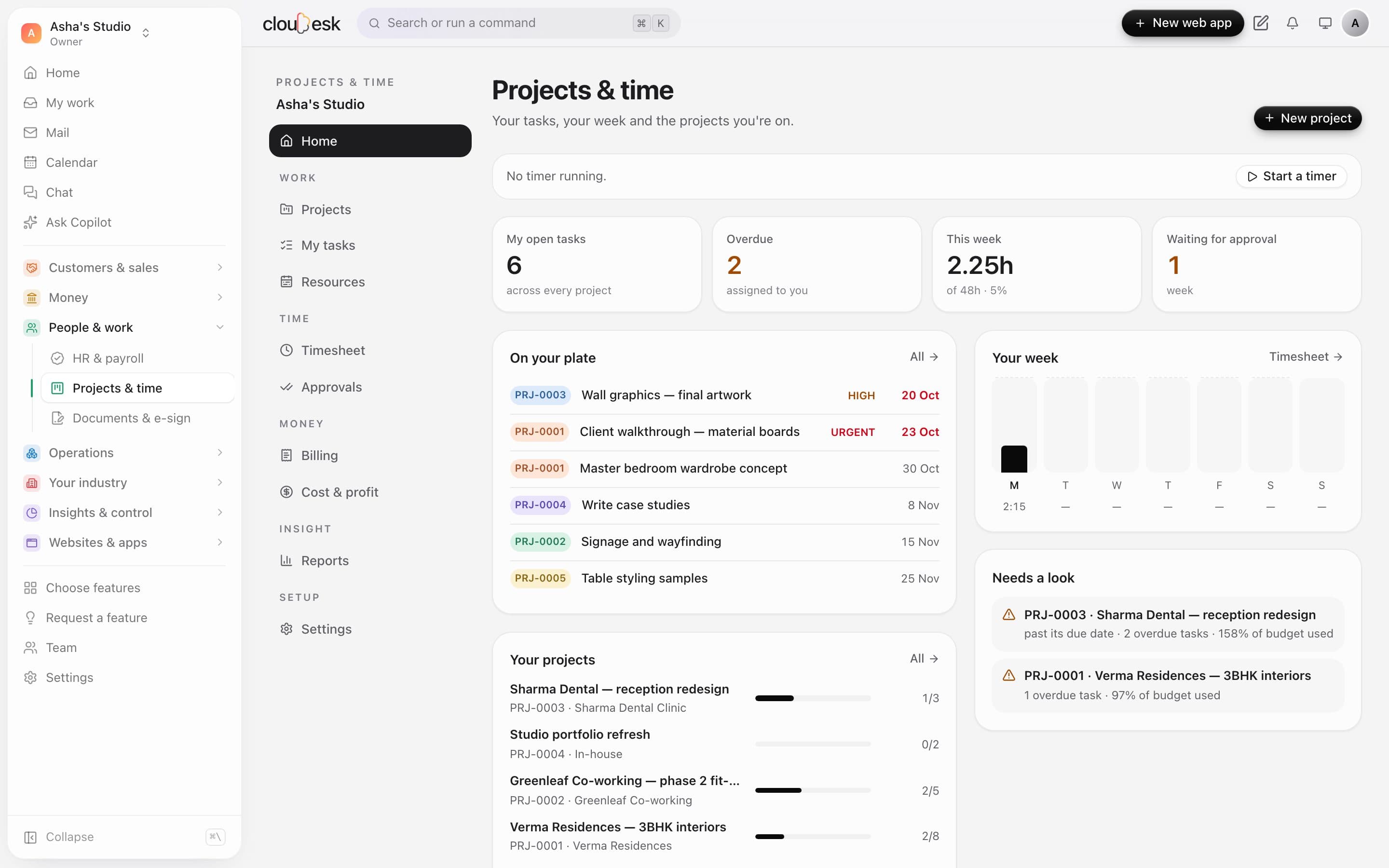
    What's on your plate by due date, your hours each day against your working day, projects that are late or near their budget, and — for owners and admins — weeks waiting for approval.

    • Timer always to hand
    • Overdue work first
    • Projects that need a look
    The Projects home
  2. 02Board

    Every task, where it stands.

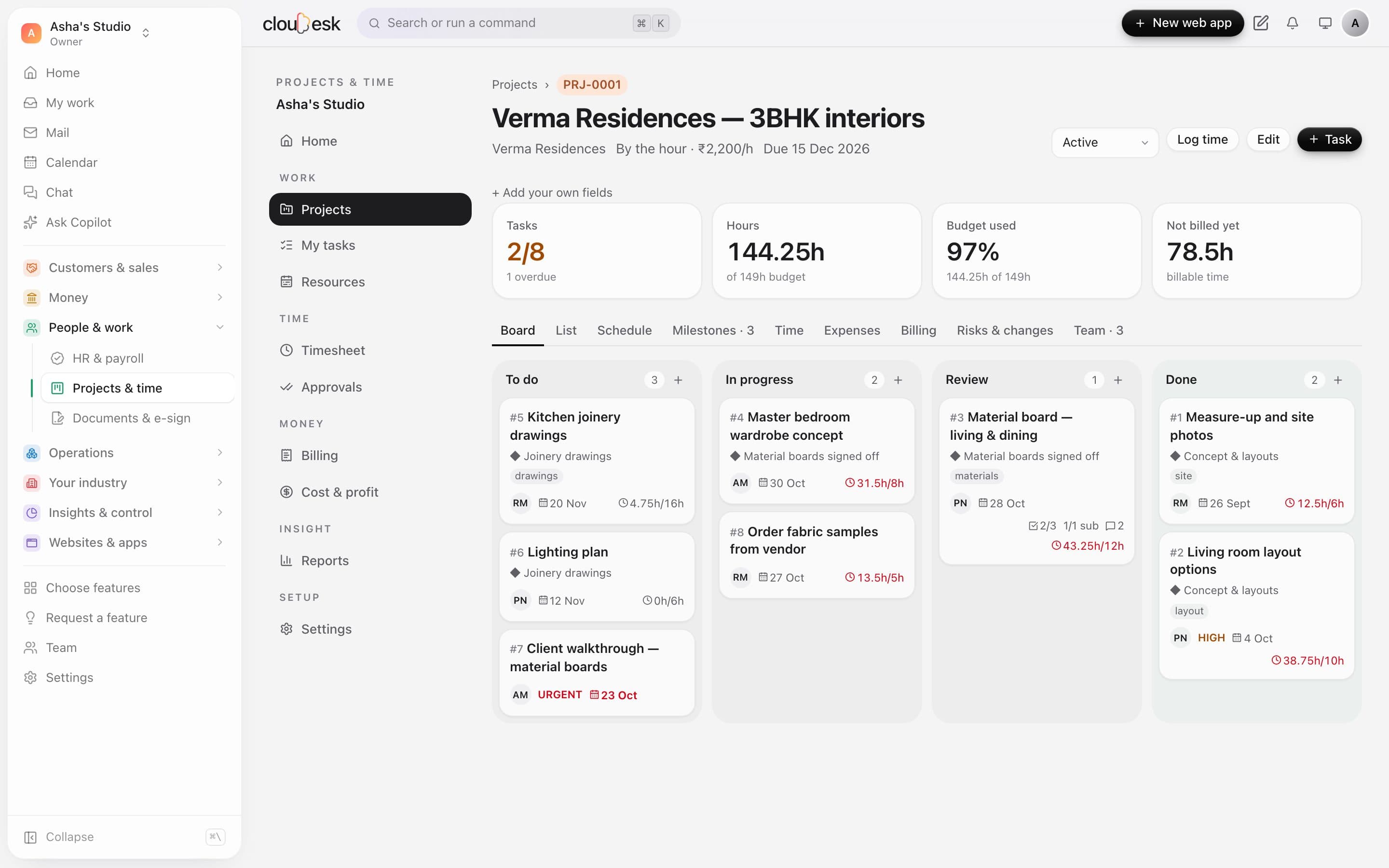
    Drag cards between columns or use their menu. Each card shows who has it, its milestone, due date, checklist, subtasks, comments, and hours logged against the estimate — in red when it's over.

    • Columns you can rename
    • Milestones and tags
    • Hours against estimates
    • List view and export
    A project's board
  3. 03Tasks

    Everything about a task, on one page.

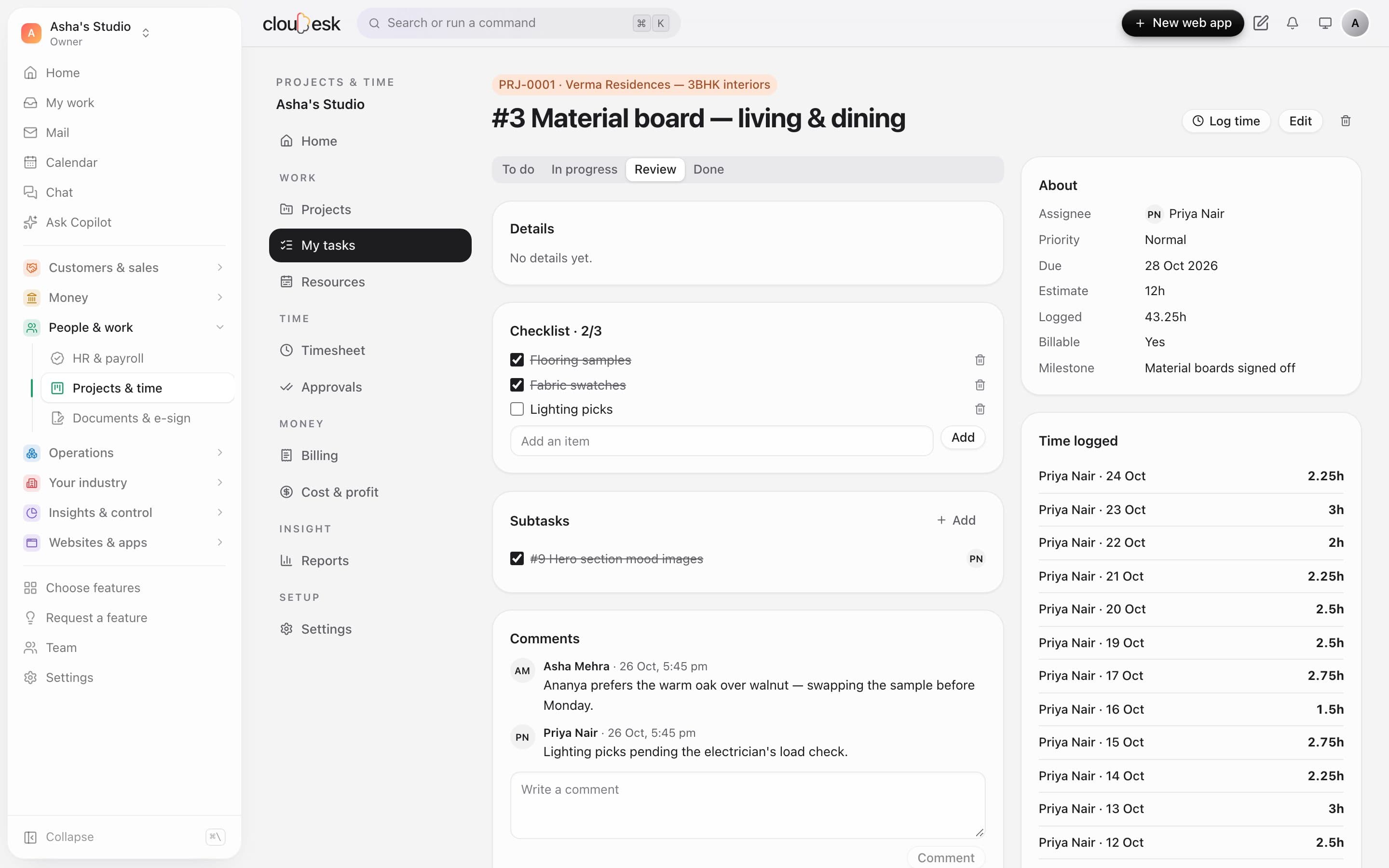
    Details, a checklist the assignee can tick off, subtasks, comments and every hour logged on it. Assigning a task to someone emails them a link.

    • Checklists
    • One level of subtasks
    • Comments
    • Time on the task
    A task with its checklist, subtasks, comments and time
  4. 04Timesheets

    A week of hours in a minute.

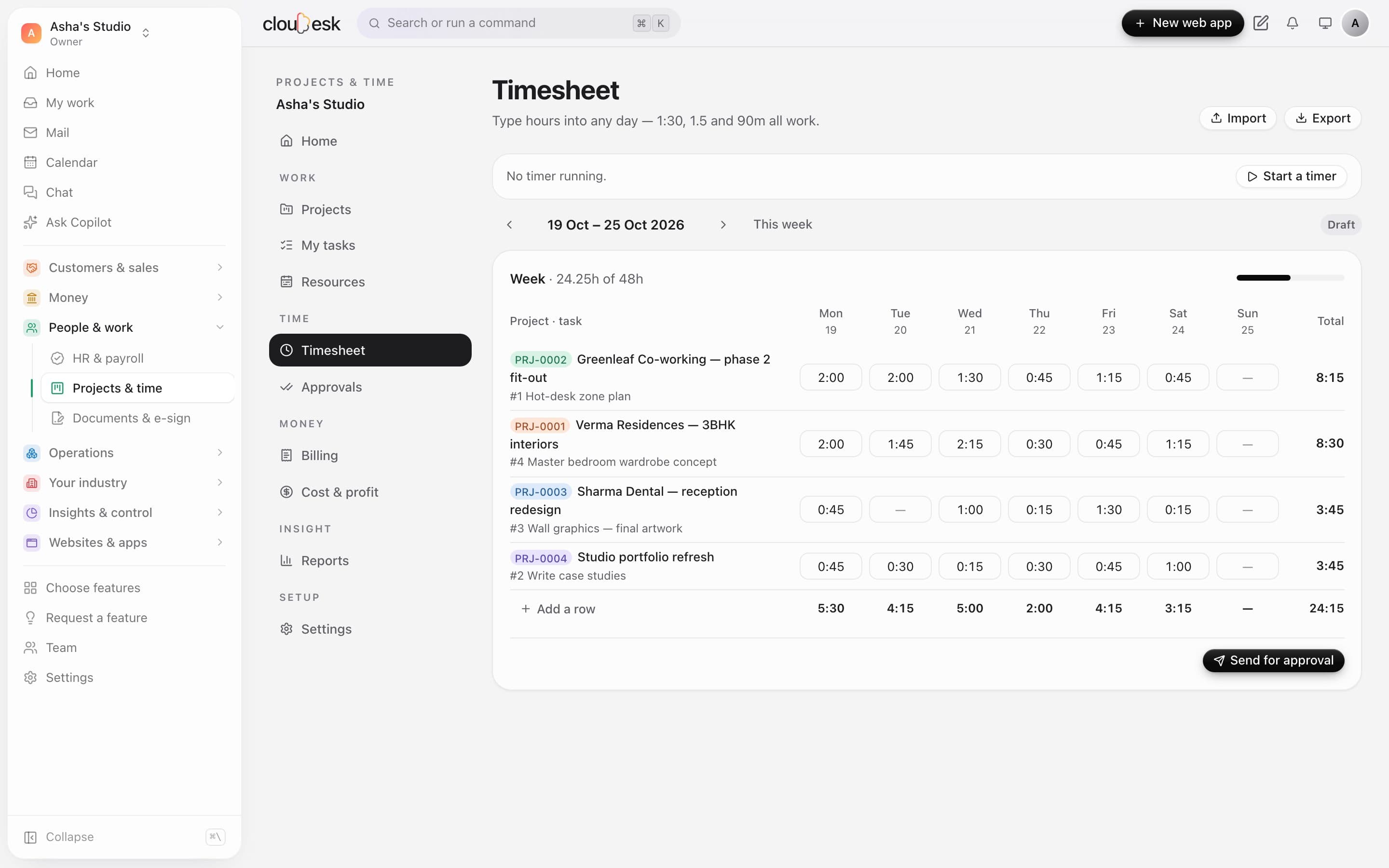
    One row per project or task, one box per day. Type 1:30, 1.5 or 90m. Leave approved in HR is marked and comes off your capacity. Send the week for approval when it's done.

    • Timer or by hand
    • Leave from HR
    • Import and export
    • Locked once approved
    A weekly timesheet
  5. 05Approvals

    Check the week before it's billed.

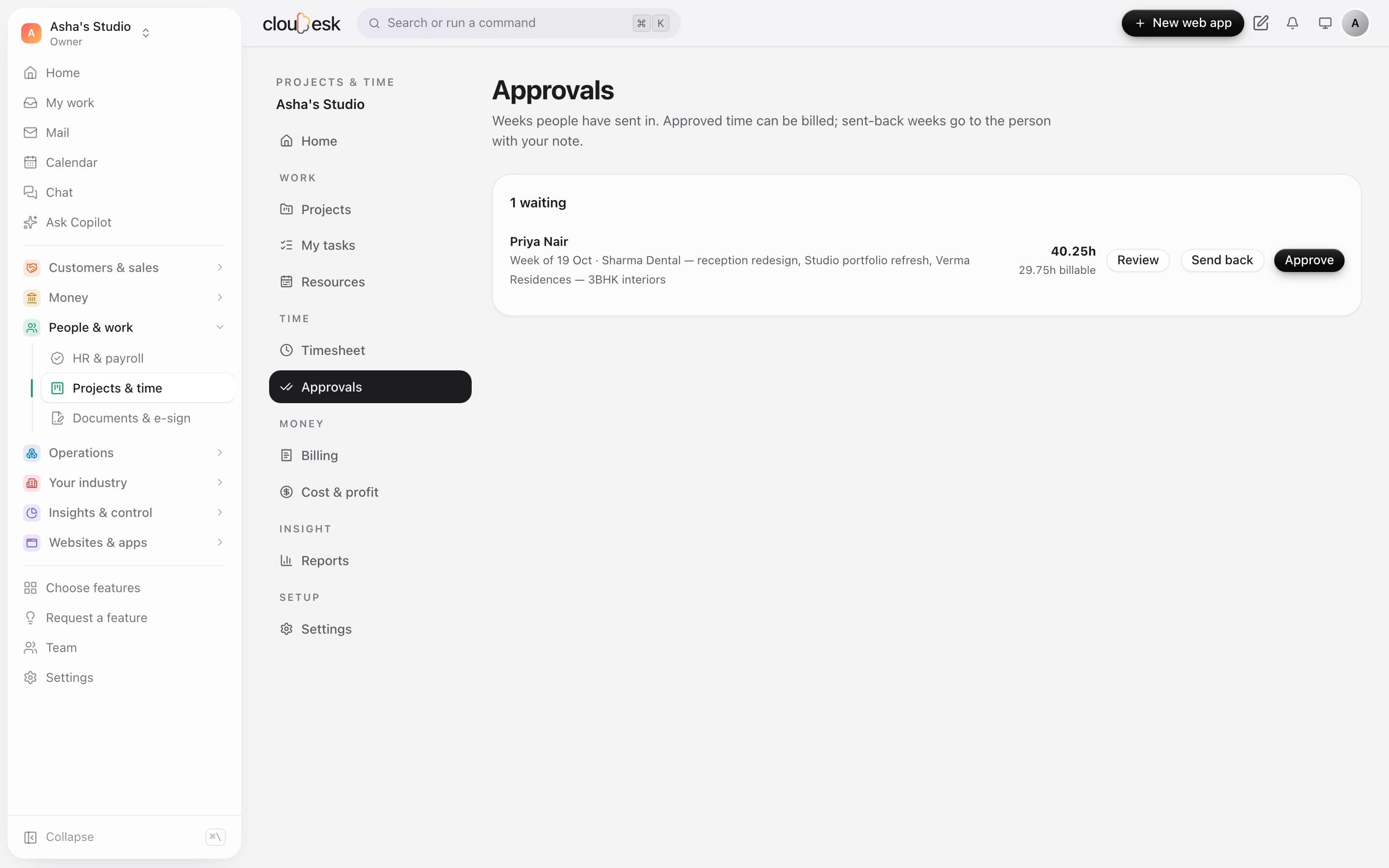
    Weeks people have sent in, with their hours and projects. Open a week to review it, approve it, or send it back with a note that reaches them by email.

    • Review the full week
    • Send back with a note
    • Approved time locks
    Weeks waiting for approval
  6. 06Billing

    Approved hours, straight onto an invoice.

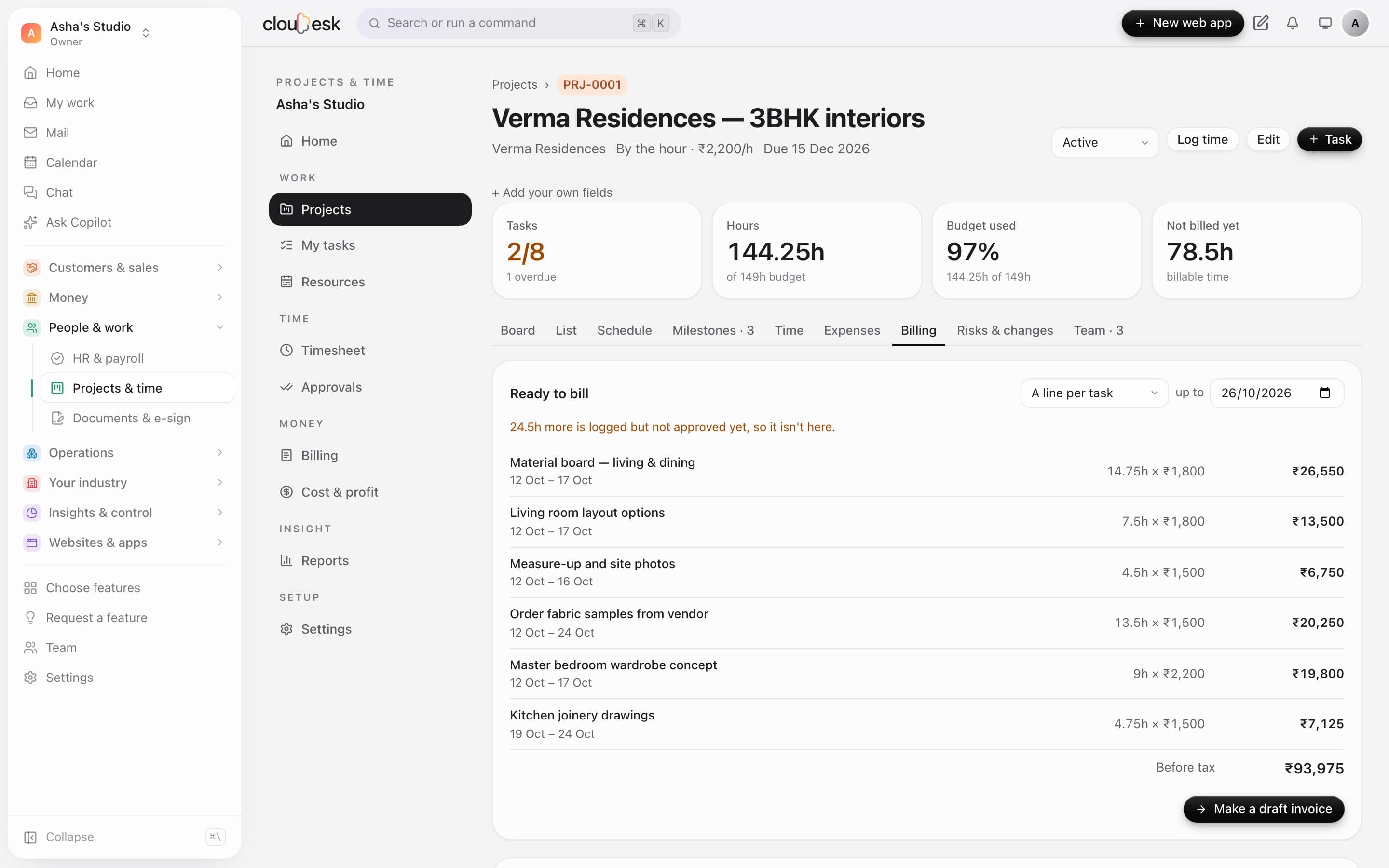
    What's ready to bill, at each person's rate, grouped by task, by person or in one line — and what's still waiting for approval. One click makes a draft invoice for the client in your books.

    • Rates per person
    • Up to a date you choose
    • Never billed twice
    • Void to bill again
    Hours ready to bill on a project
  7. 07Milestones

    Fixed fees, billed as you go.

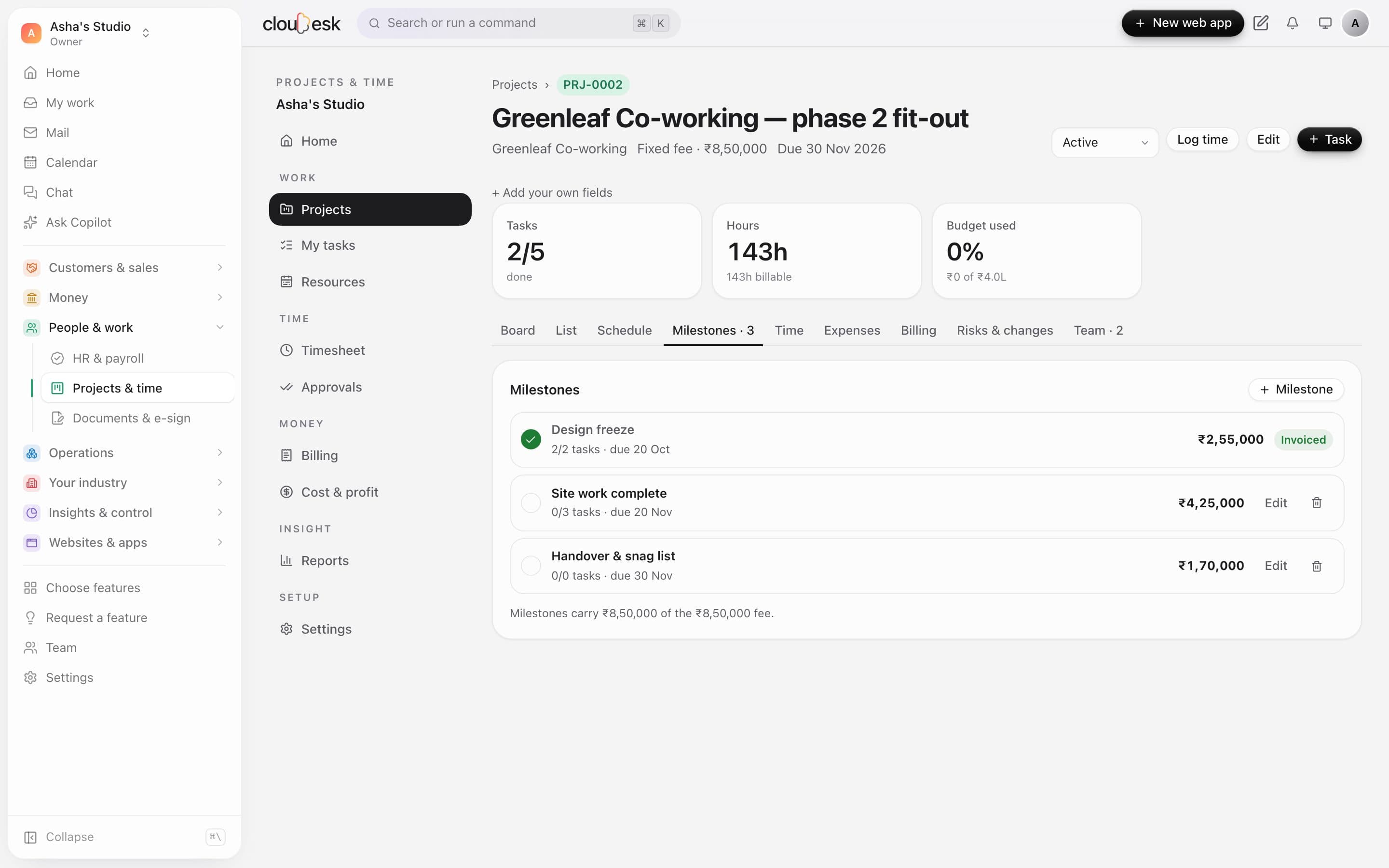
    Split a fixed fee across milestones. Mark one reached and invoice it; the rest wait their turn.

    • Due dates and task counts
    • Amount per milestone
    • Invoiced ones are kept
    Milestones on a fixed-fee project
  8. 08Cost & profit

    Which projects actually make money.

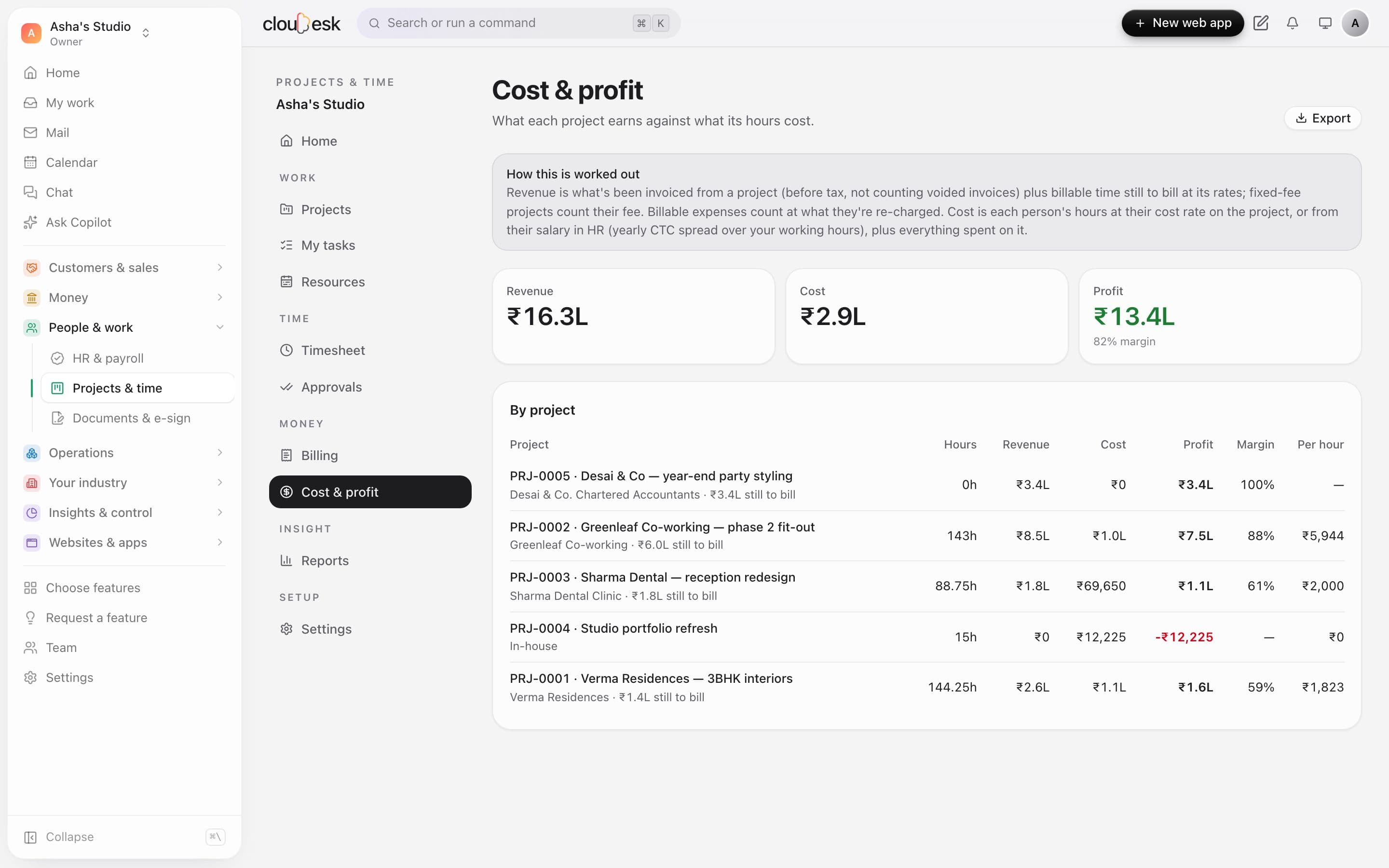
    Revenue invoiced and still to bill, against what the hours cost — from each person's cost on the project, or their salary in HR for those allowed to see it. Margin and the real rate you earned per hour.

    • Costs from HR salaries
    • Fixed fee or hourly
    • Export to Excel
    Cost and profit by project
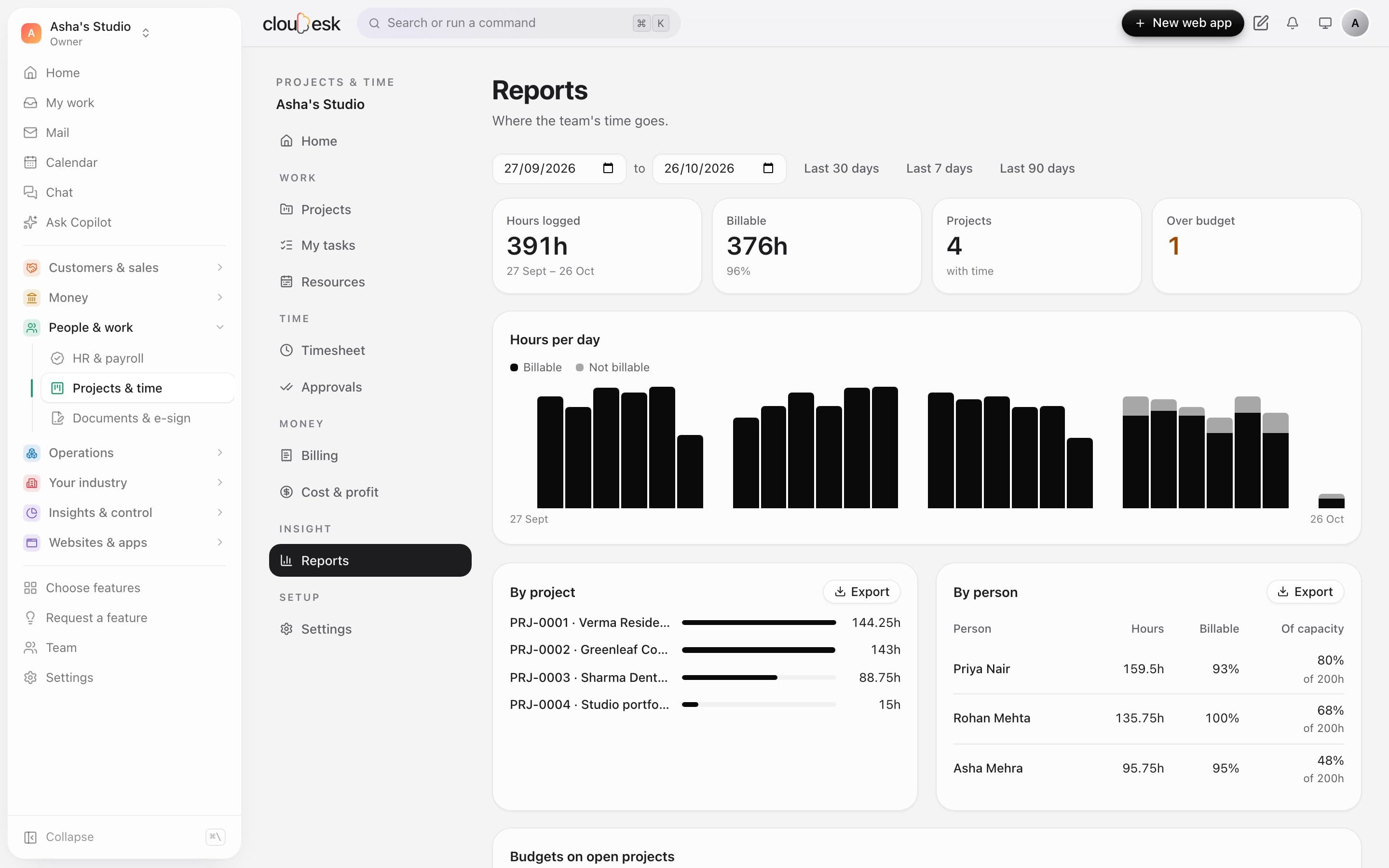
  9. 09Reports

    Where the team's time goes.

    Hours per day, billable and not; hours by project; and each person's hours against their capacity for the dates you pick — less their leave. Budgets on every open project.

    • Utilisation
    • Billable share
    • Budget burn
    • Export each table
    Hours by day, project and person

In detail

What you get with Cloudesk Projects & timesheets

A board for every project

To do, in progress, review and done — renamed to suit you. Drag cards or use their menu; see who has it, when it's due, its checklist, subtasks, comments and hours against the estimate.

Good to know

We'd rather be upfront than surprise you later:

  • Time is billed from your invoicing books, so Invoices & finance needs to be switched on to bill clients; projects without it can still track work and time.
  • Billing makes a draft invoice; you check it, then issue and send it from your books. Lines show hours to three decimals, so 47 minutes is billed as 0.783 hours.
  • Team members with the Employee role (HR self-service only) can't be put on projects or log time.
  • Costs from HR use yearly CTC spread over your working days and hours — overtime, bonuses and unpaid leave aren't taken into account.
  • Dependencies are finish-to-start or start-to-start with lag in calendar days; pushing tasks later never pulls anything earlier, and there are no recurring tasks yet. The board has one level of subtasks.
  • Resource bookings are planned hours; they don't block anyone from logging time, and capacity counts working days and approved HR leave only, not public holidays.
  • Task emails are sent only when your workspace has a mail service; otherwise they're recorded in the outbox.

Questions people ask

Can people see each other's hours?+

Owners and admins see everyone's time, approvals, rates, costs and profit. Everyone else sees projects and tasks, and only their own time.

What if I don't need approval?+

Switch it off in Settings — time then counts as approved as soon as it's logged and can be billed straight away.

Can different people bill at different rates?+

Yes. Each project has a rate per hour, and anyone on its team can have their own. Hours at different rates never share an invoice line.

What happens if I void an invoice made from hours?+

The hours and milestones on it are freed and show up as ready to bill again.

Can I start a project from the CRM?+

Yes. A won deal has a “Start a project” button that fills in its name, value and company, and links the client in your books when one matches.

Works beautifully with

Give it a spin — it's free to start.

Next up: Cloudesk HR & payroll →

Start free