All features

Cloudesk for Horeca

Run your restaurant, bar and rooms from one screen.

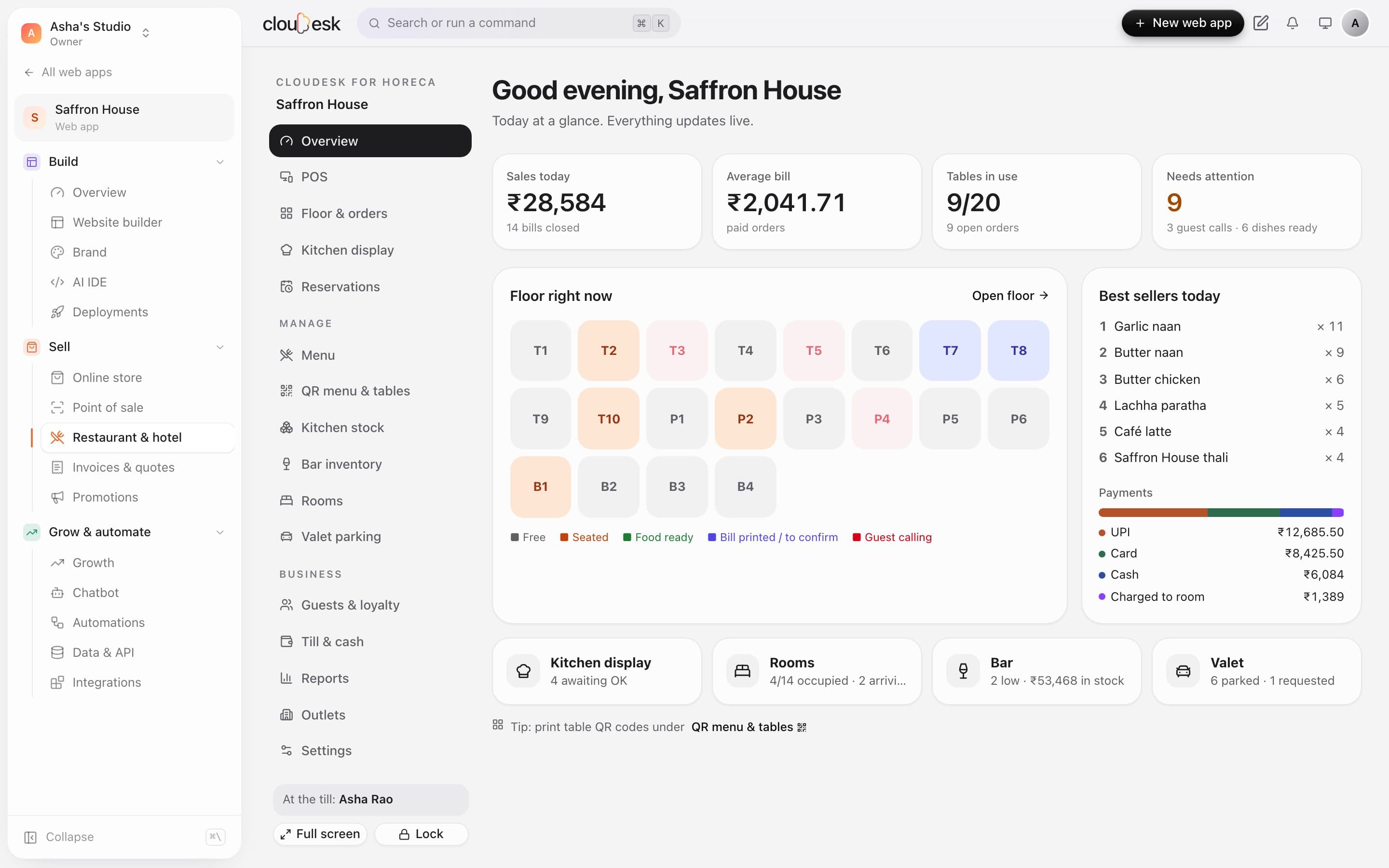
A full-screen POS with staff PINs and manager approvals. QR ordering at every table, a kitchen display by station, GST bills, reservations, recipes that take stock out as dishes are sent, loyalty, a till you close by counting, reports — plus rooms, bar stock and valet for hotels. From a one-counter café to a group with many outlets.

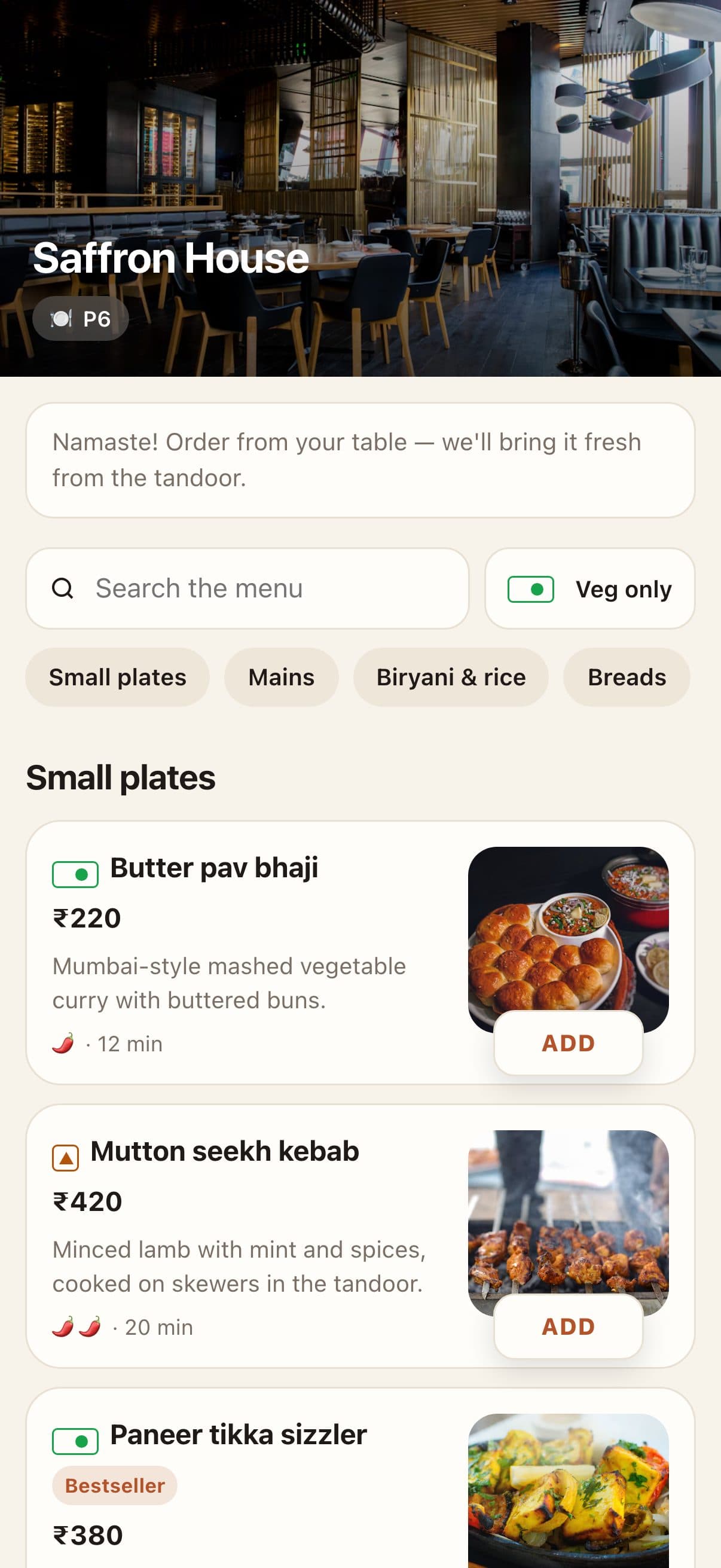
Ordering from the table on a phone

Real screenshots from Cloudesk for Horeca, using a demo hotel and its demo staff, orders, stock, bookings and cars.

How it works

Three steps, no surprises

  1. 1

    Set up in a minute

    Name your venue, pick restaurant, café, bar, hotel or cloud kitchen, and how many tables. Each table gets its own QR code, ready to print. Switch off the sections you don't need.

  2. 2

    Add your menu and team

    Dishes with photos, add-ons, short POS codes and recipes; staff with roles and their own PINs; the float for the till.

  3. 3

    Open for service

    Ring up orders on the POS or let guests order by QR, the kitchen bumps tickets, and you settle bills by cash, UPI, card, points or to the room — then count the till and read the day's report.

The tour

Every tool, up close.

  1. 01Point of sale

    A POS built for the Saturday rush.

    Full screen on a tablet or counter PC. Pick dine-in, takeaway, delivery or room service, tap dishes or type a short code, and send the KOT — then bill and take payment without leaving the screen.

    • Short codes: type BC and press Enter
    • Covers, customer by phone and loyalty points
    • Hold a ticket, open counter orders, print the KOT
    • Cash with quick notes, UPI, card, points or to the room
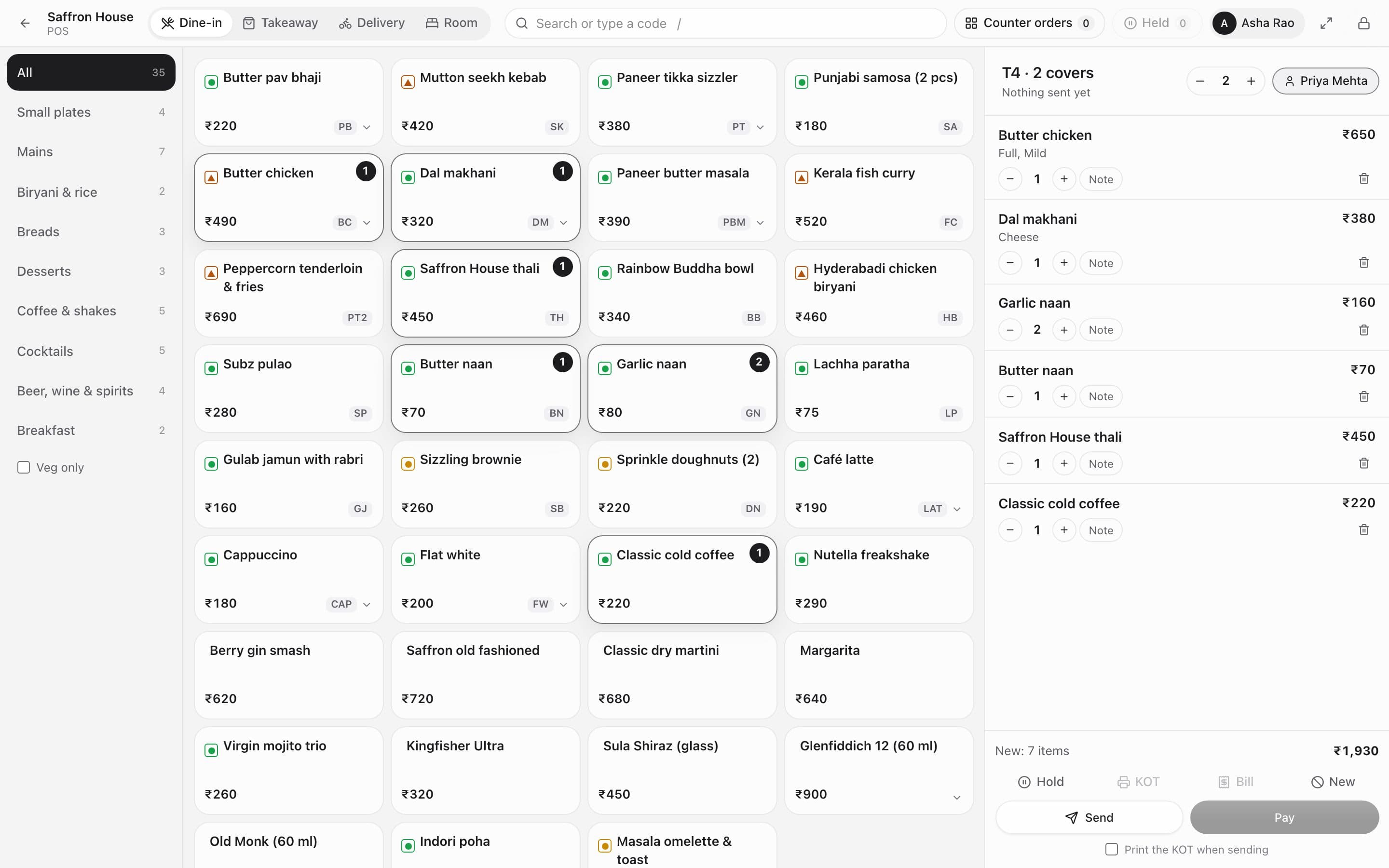
    The full-screen POS with table T4's ticket, dish codes and covers
  2. 02Staff & security

    Every till unlocks with a PIN.

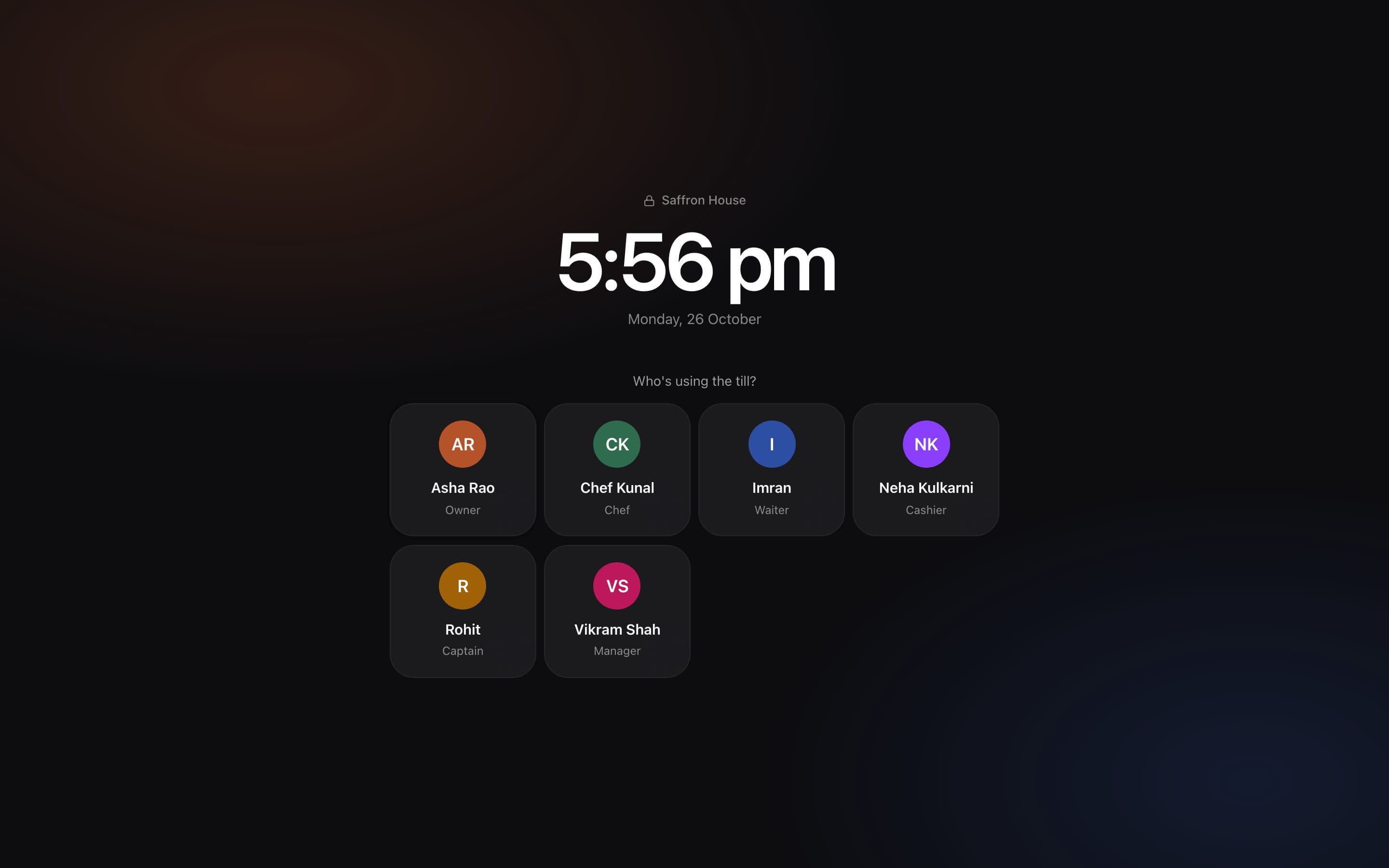
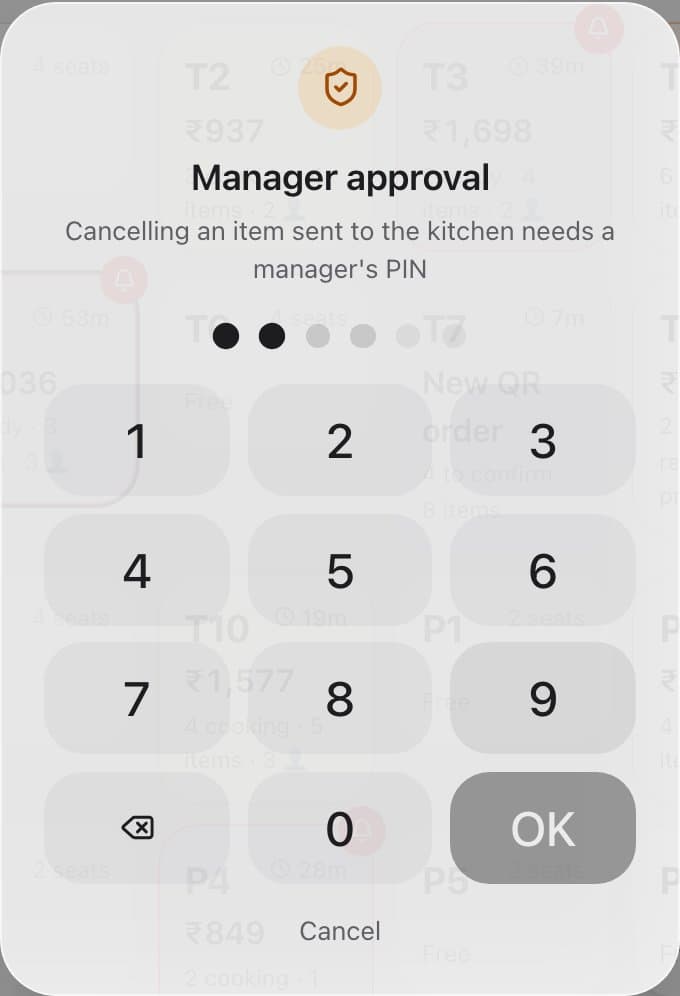
    Each person taps their name and enters their PIN, so every order, cancellation and payment shows who did it. The screen locks itself when idle — and cancelling a dish, comps, big discounts and cash pay-outs wait for a manager's PIN.

    • Roles from owner and manager to waiter and chef
    • Lock on demand or after idle minutes
    • Manager approval with a reason, kept in the log
    • Wrong PINs are rate-limited
    The lock screen: a clock and a tile for each staff member
  3. 03QR ordering

    Guests scan, order and ask for the bill.

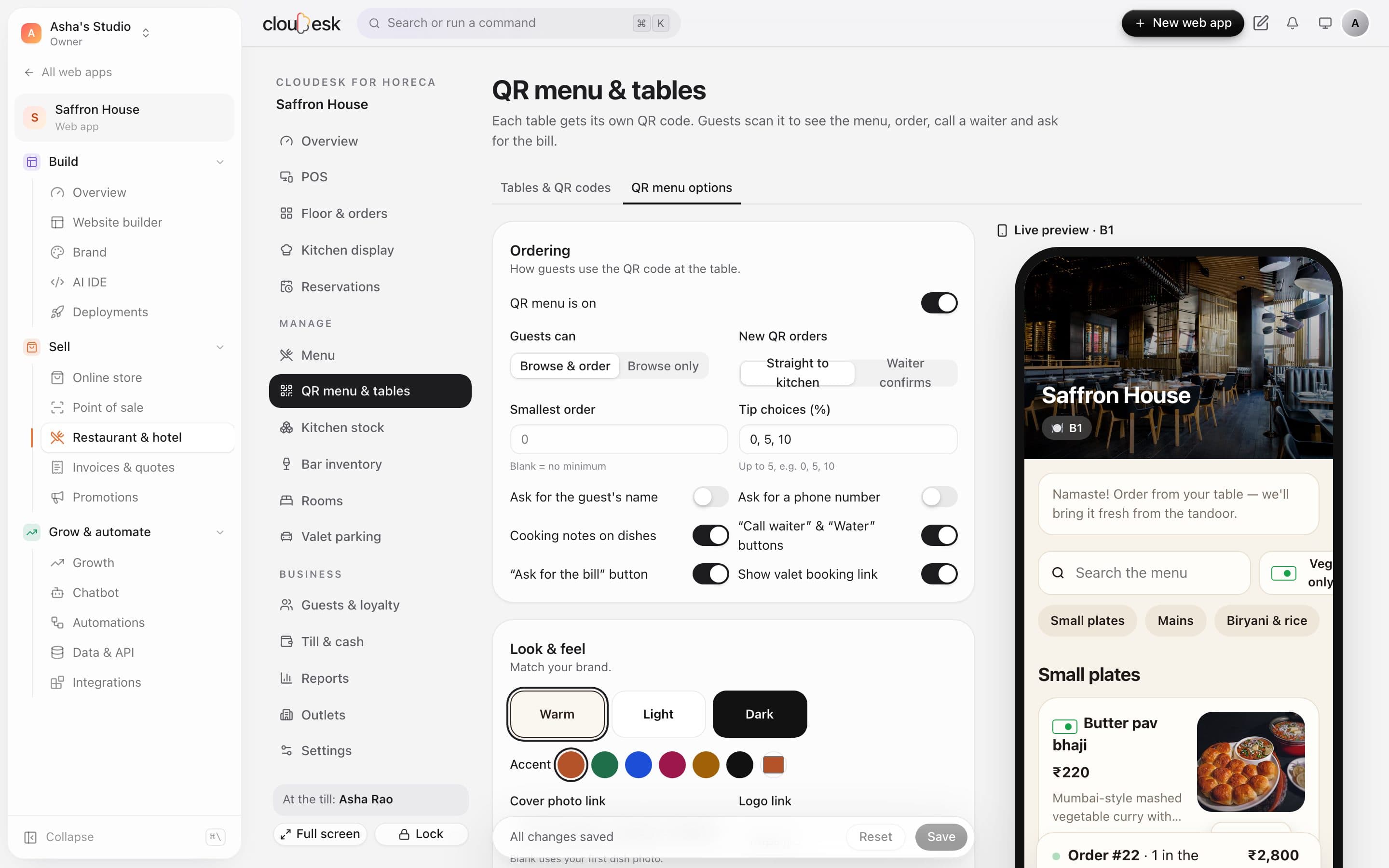
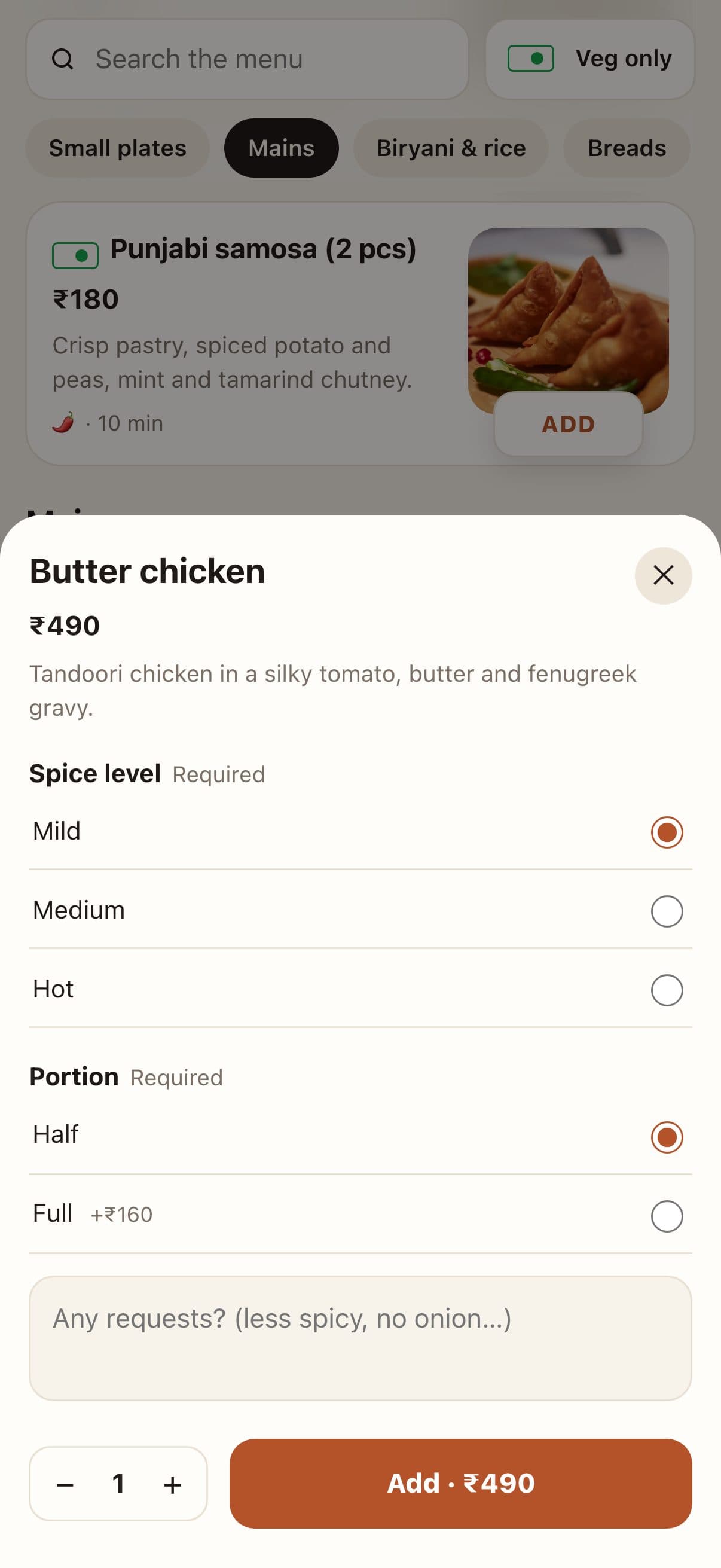
    Every table has its own QR code. The menu opens in the guest's browser with photos, veg marks and add-ons — and their order goes straight to the kitchen, or to a waiter first. After paying, it asks how the meal was.

    • Straight to the kitchen, or a waiter confirms
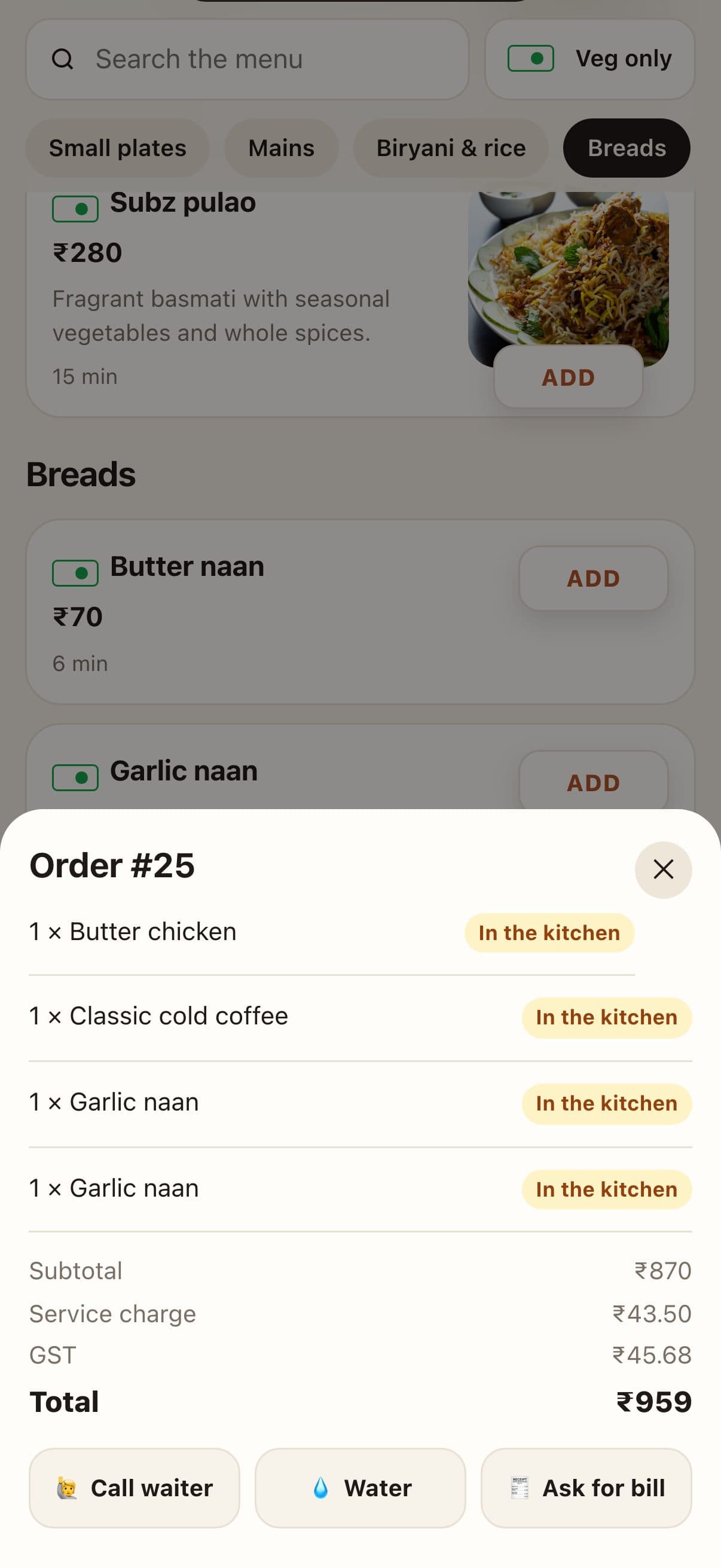
    • Call waiter, water and bill buttons
    • Live order tracking on the guest's phone
    • Your colours, cover photo, tips and UPI ID
    QR menu options with a live phone preview of the guest menu
  4. 04The floor

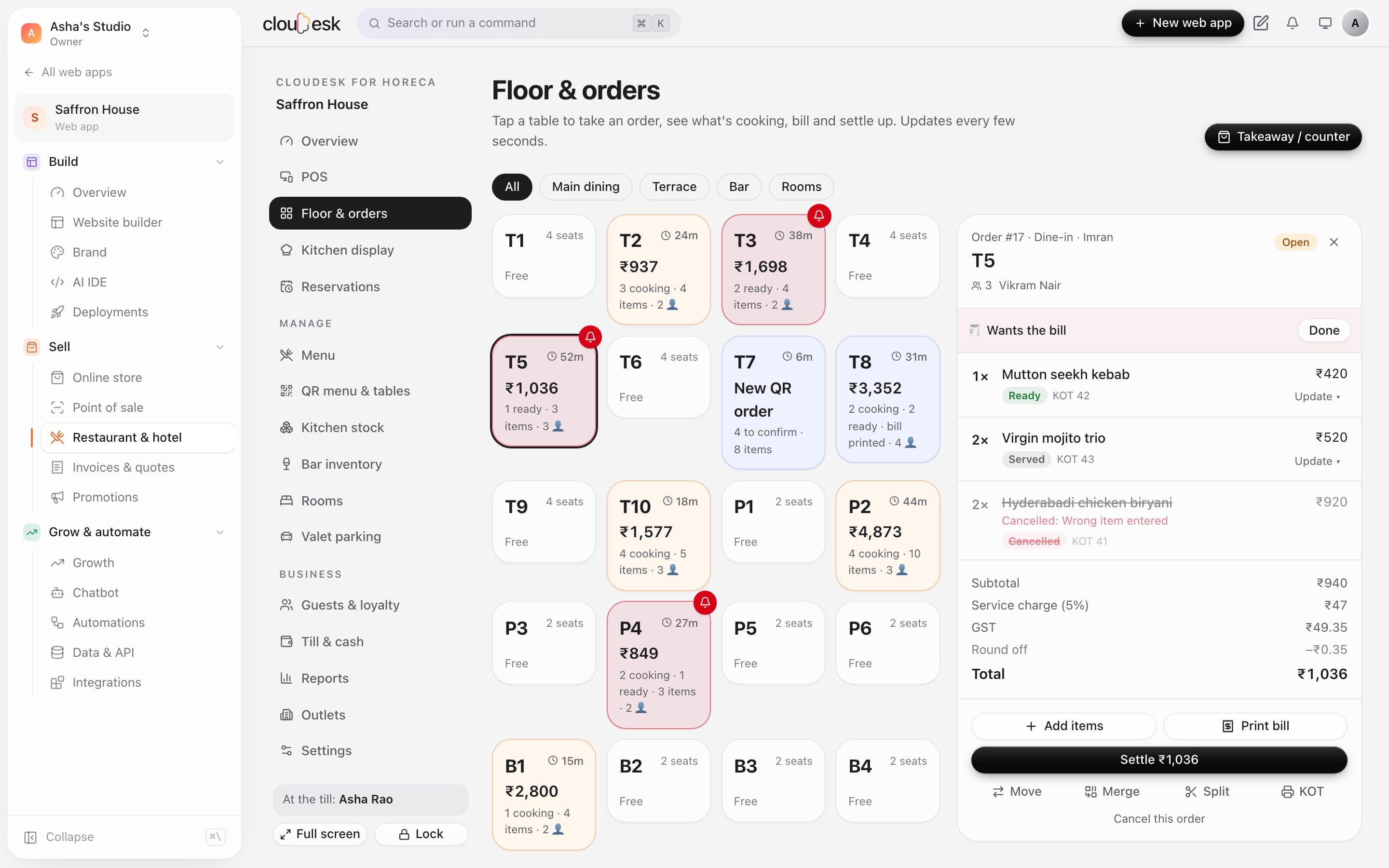
    Every table, live — down to who's calling.

    Tables show what's cooking, what's ready and how long guests have been seated. A bell appears the moment someone taps “Call waiter” or “Ask for the bill”. Move a party, merge two tables or split dishes onto a new check.

    • Areas like Main dining, Terrace and Bar
    • Move, merge and split checks
    • Cancel with a reason, or put a dish on the house
    • QR orders waiting for a waiter's OK stand out
    The floor plan with table T5's order open beside it
  5. 05Bills

    GST, service charge, tips and split bills.

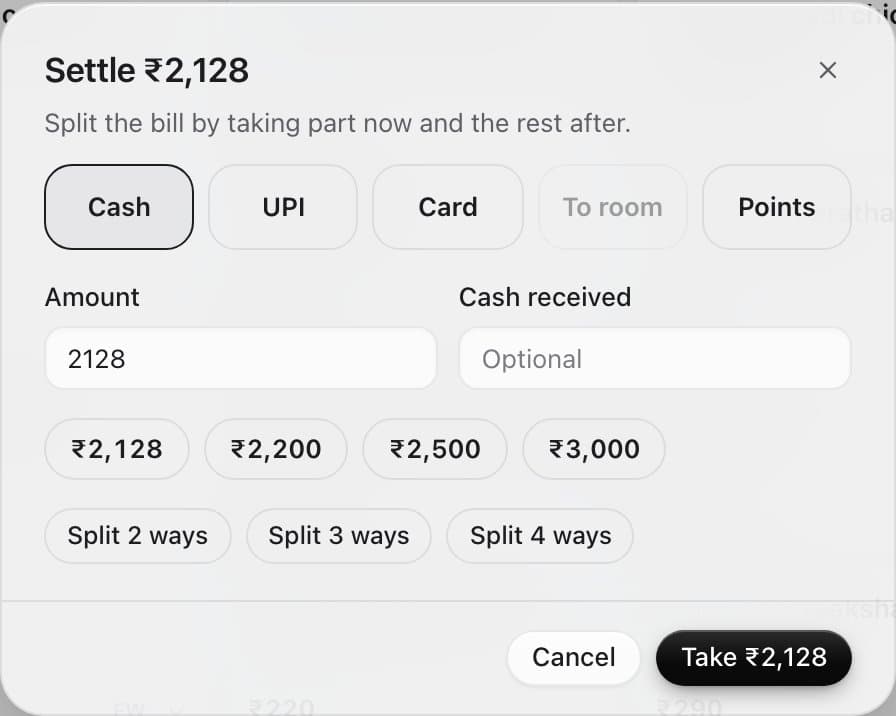
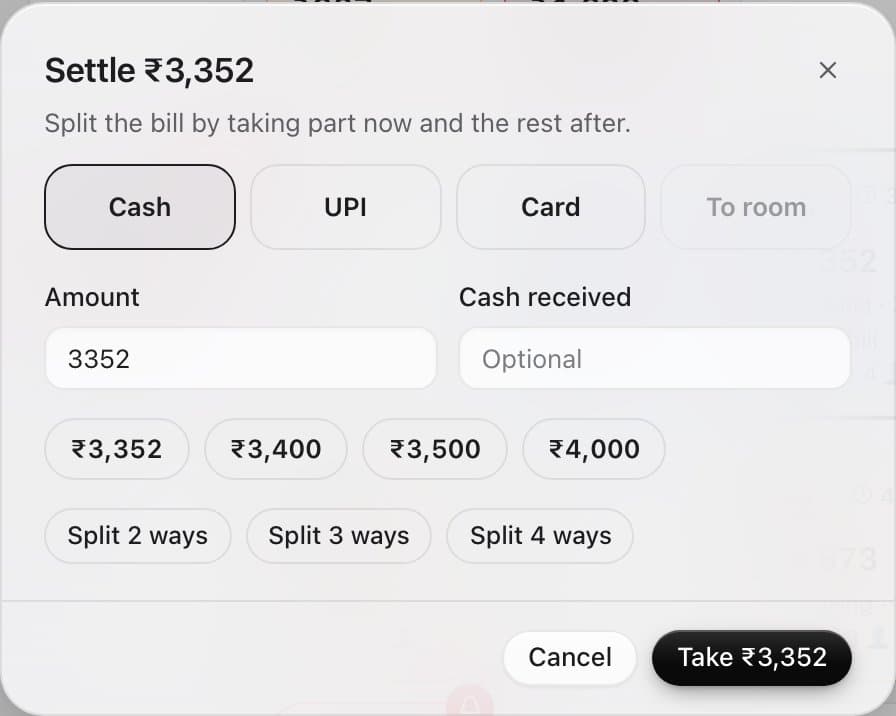
    Print a clean 80 mm bill with CGST and SGST shown, your GSTIN and FSSAI number, and the total rounded to the rupee. Service charge applies to dine-in only. Settle by cash, UPI, card, loyalty points — or charge it to a guest's room.

    • Discount by percent or amount, with a reason
    • Split two, three or four ways, or part-pay
    • Delivery fee on delivery orders
    • Charge to room posts to the guest's folio
    Settling a bill: cash, UPI, card, to the room or points, with split buttons
  6. 06Kitchen display

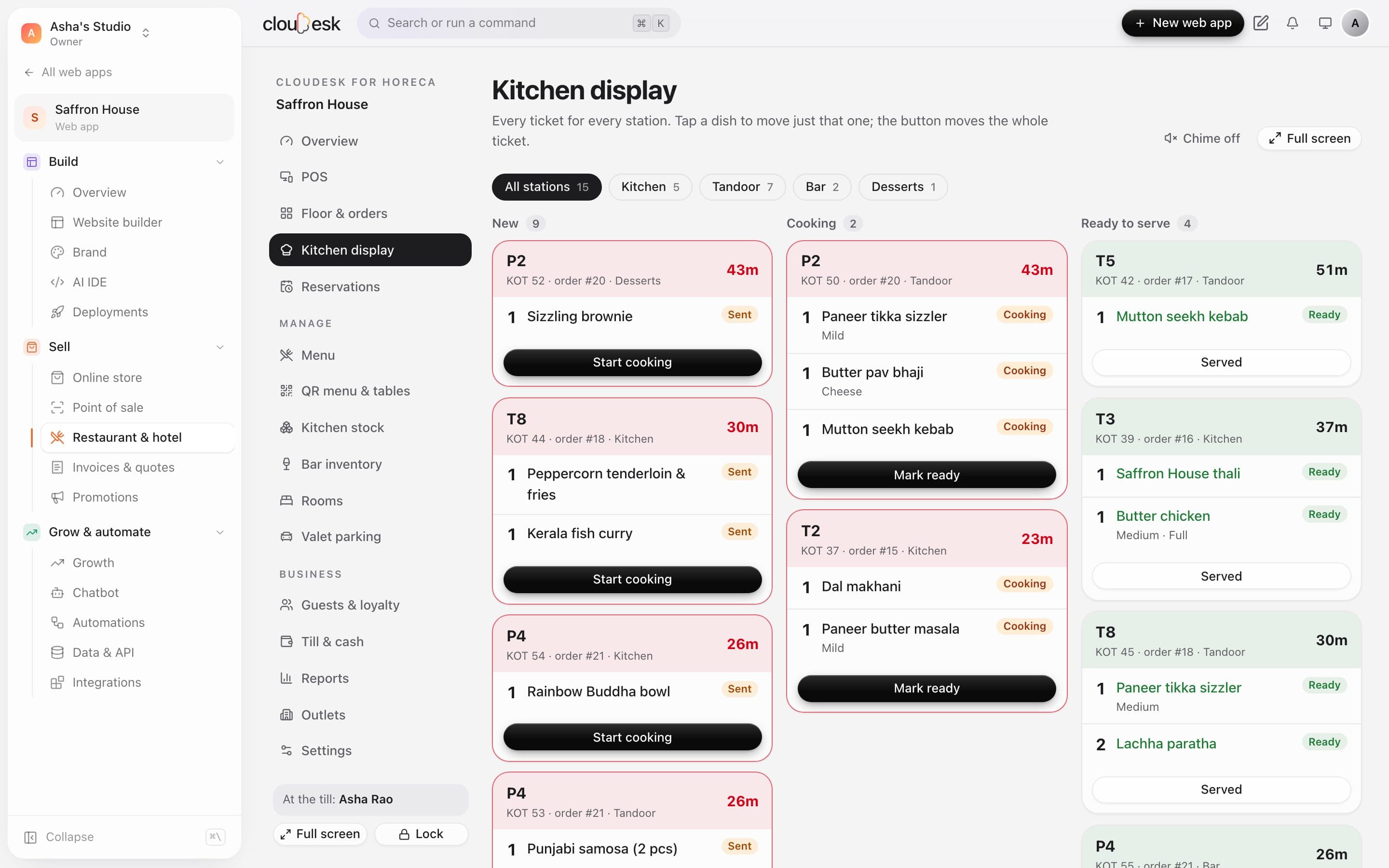
    Tickets by station, timed to the minute.

    Each category sends its dishes to a station — kitchen, tandoor, bar, desserts. Cooks bump a whole ticket or a single dish, and late tickets turn red.

    • New, Cooking and Ready columns
    • Filter by station
    • Full screen for a kitchen TV, with an optional chime
    Kitchen tickets with station, timer and the next step
  7. 07Reservations

    Tonight's bookings, and the queue at the door.

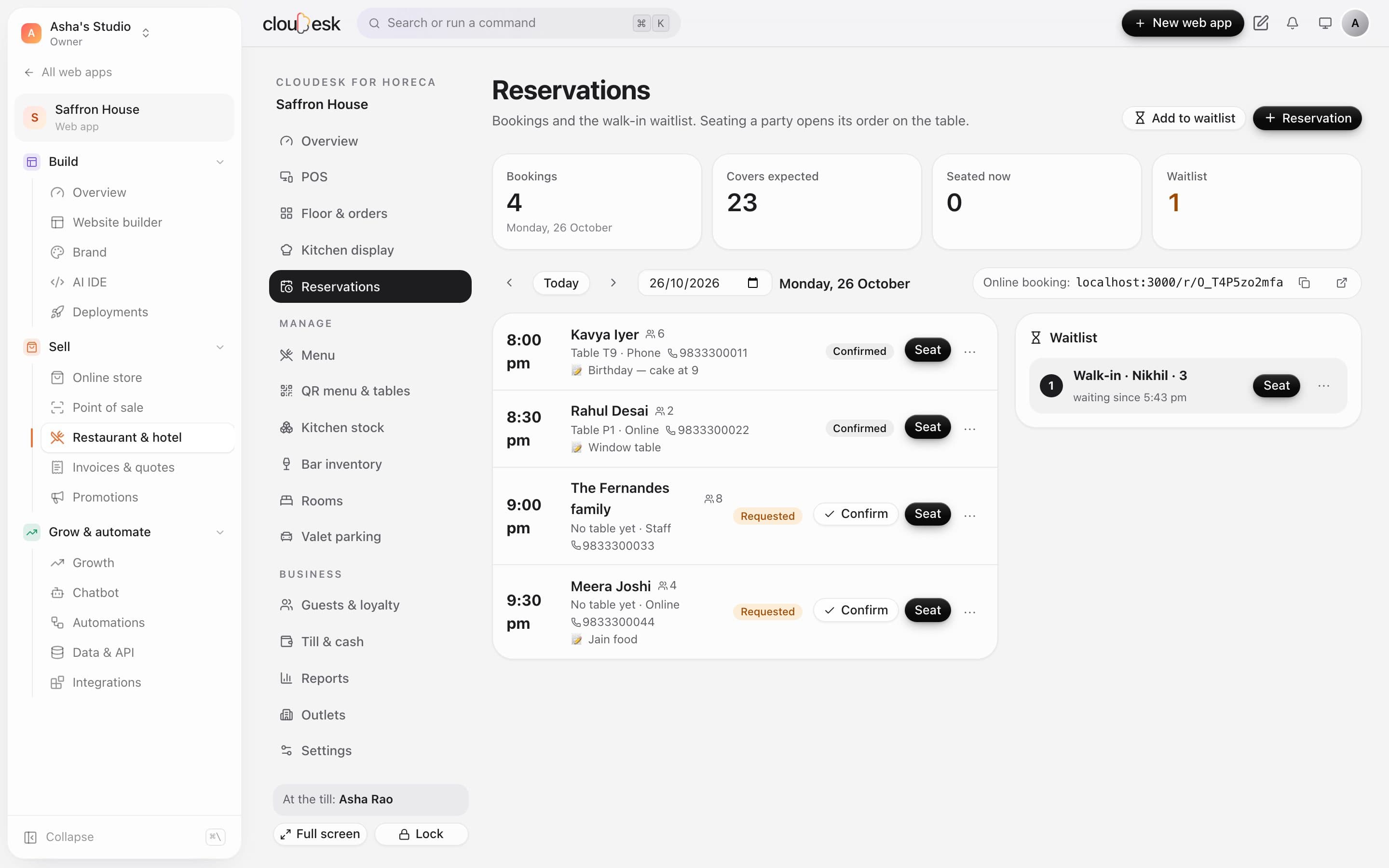
    Take bookings by phone or from your own online booking page, give them a table and confirm. Seating a party opens its order with the covers filled in; walk-ins wait on the list until a table frees up.

    • A table can't be double-booked
    • Online booking within your hours and party size
    • Confirm, seat, finish or mark a no-show
    • Covers expected for the night
    Tonight's bookings with tables, covers and a walk-in waitlist
  8. 08Menu & recipes

    A menu that knows what's in every plate.

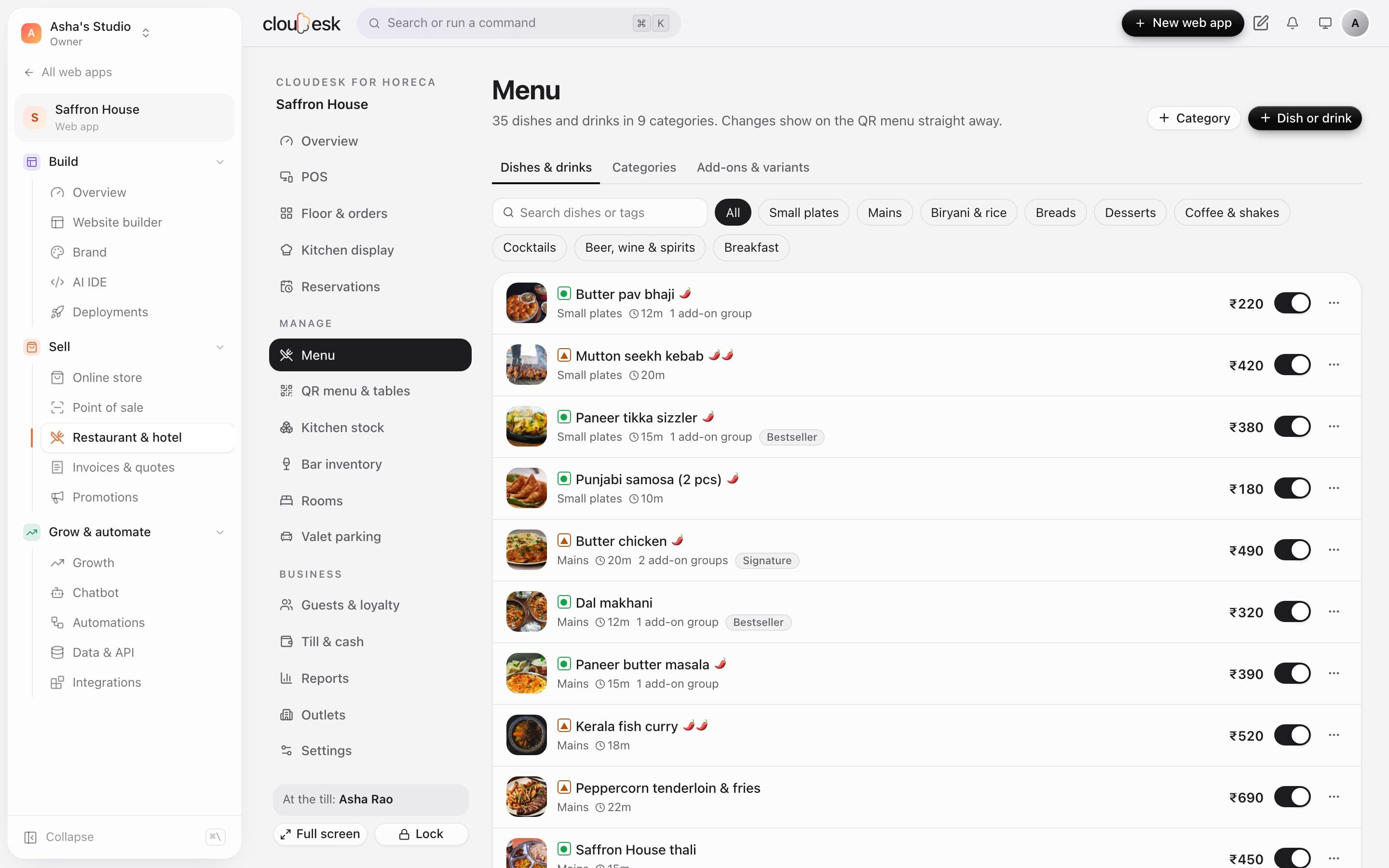
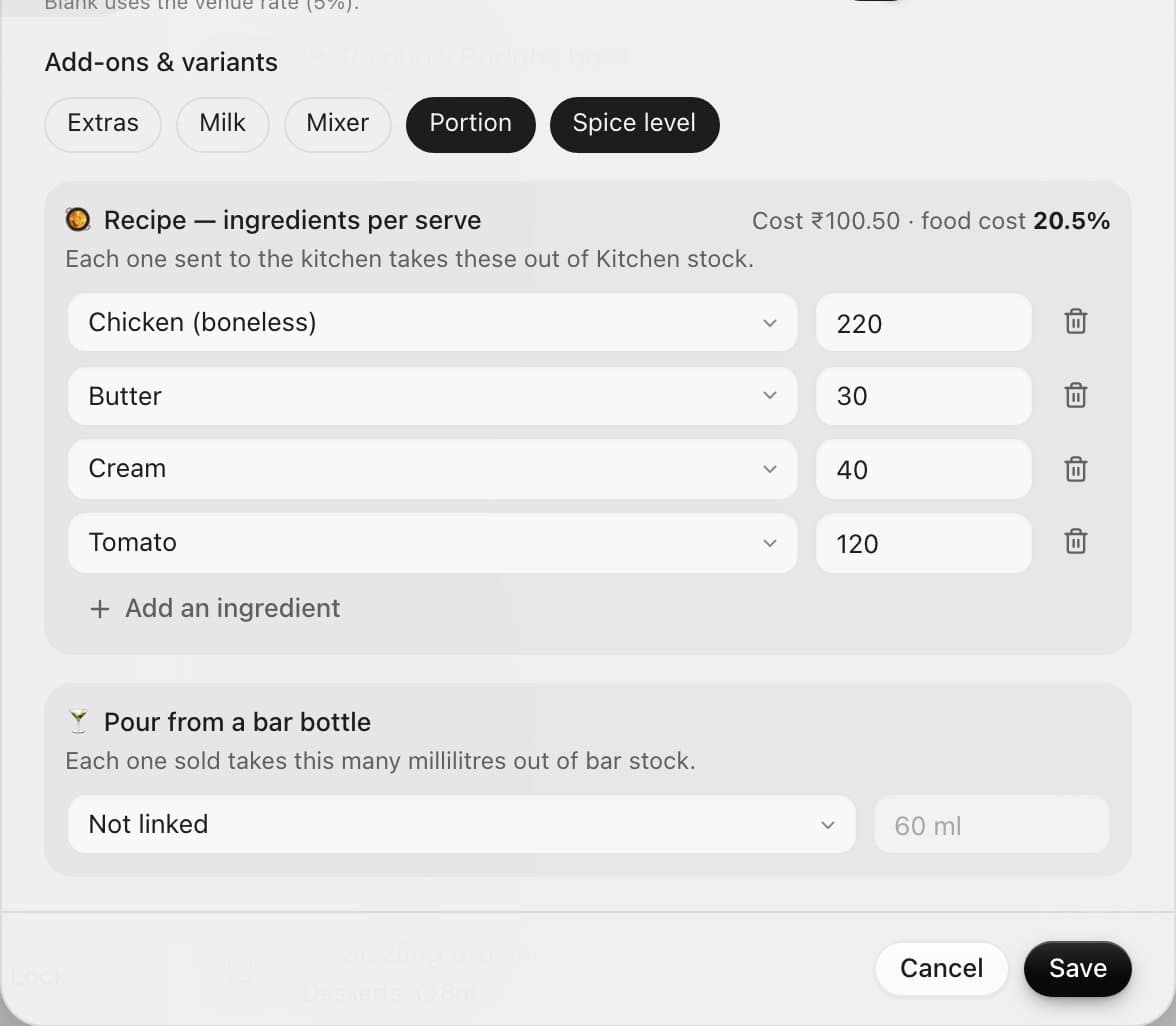
    Set serving hours per category, mark dishes sold out in one tap and add choices like portion or spice. Give each dish a short POS code and a recipe — and see its food cost while you set the price.

    • Veg, non-veg, egg and vegan marks
    • Recipes in grams, millilitres or pieces
    • Happy hours: % off chosen categories and times
    • Drinks link to a bar bottle and pour size
    The menu with photos, categories, prices and availability switches
  9. 09Kitchen stock

    Know what every plate really costs.

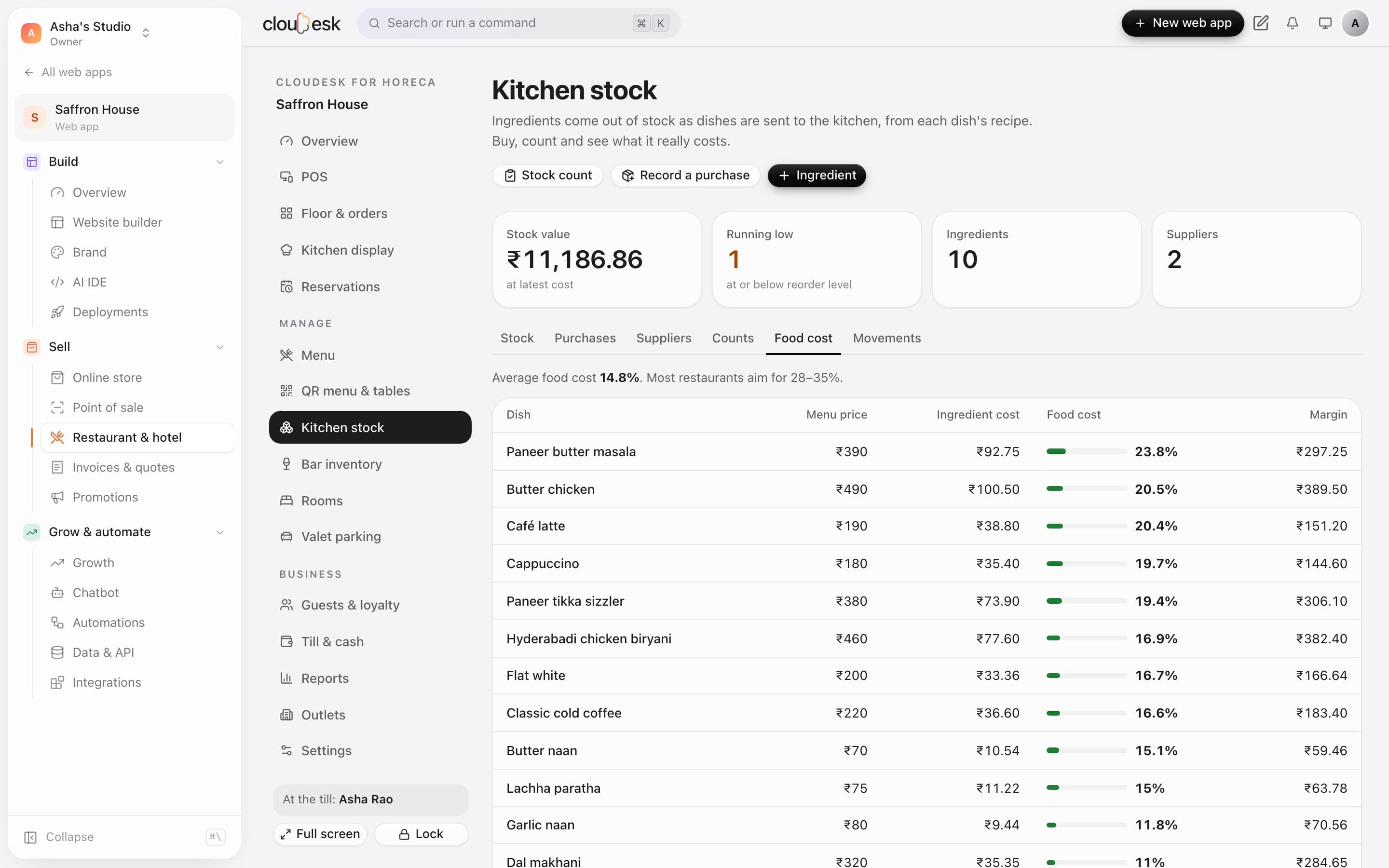
    Each dish sent to the kitchen takes its recipe out of stock; cancelling it puts it back. Record supplier invoices, wastage and counts, and see food cost and margin per dish at the latest prices.

    • Suppliers and purchases
    • Reorder levels and days of stock left
    • Counts with variance in money
    • Food cost % and margin per dish
    Food cost per dish: menu price, ingredient cost, food cost % and margin
  10. 10Guests & loyalty

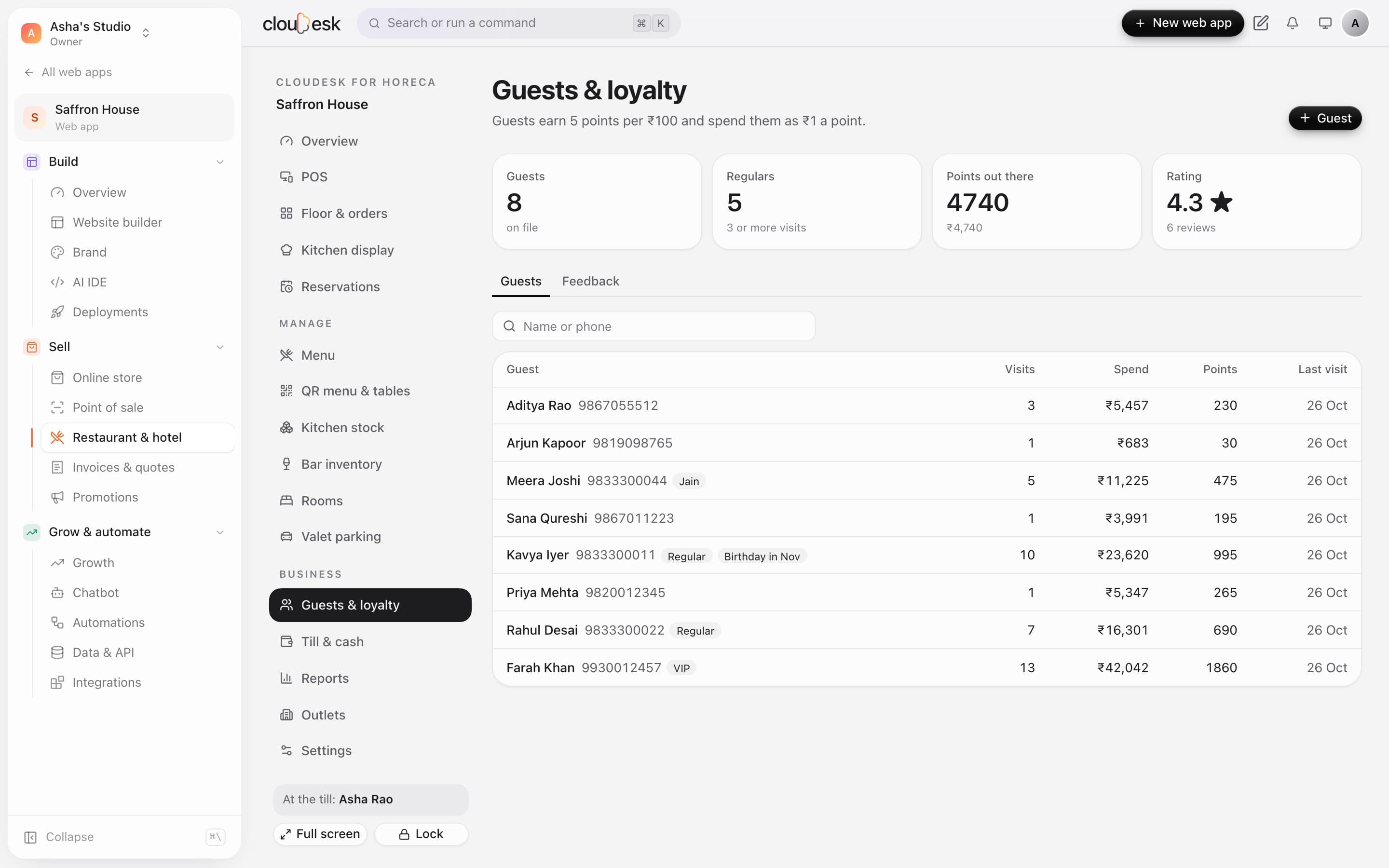
    Remember regulars by their phone number.

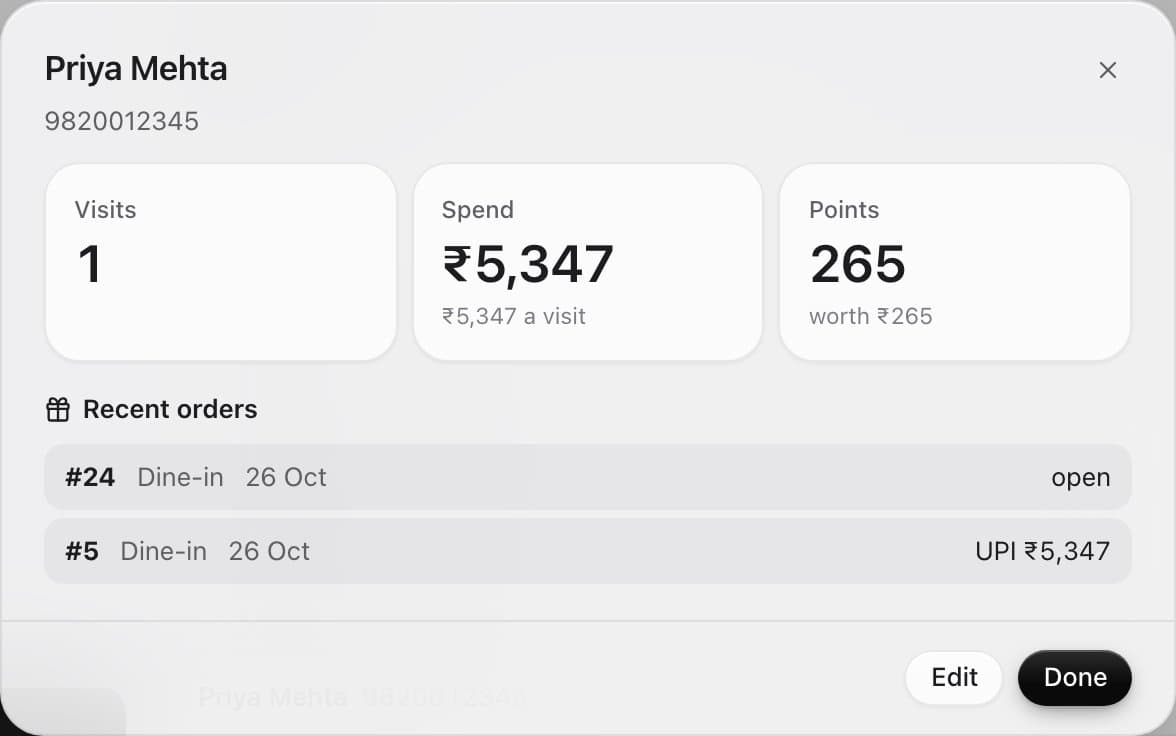
    Add a phone at the till and the guest is remembered — visits, spend and what they ordered. Turn on points and they earn on every bill and spend them next time.

    • Points per ₹100, value per point, minimum to redeem
    • Tags and notes — VIP, Jain, allergic to nuts
    • Ratings and comments after the meal
    Guests with visits, spend, points and last visit
  11. 11Till & cash

    Open with a float. Close by counting.

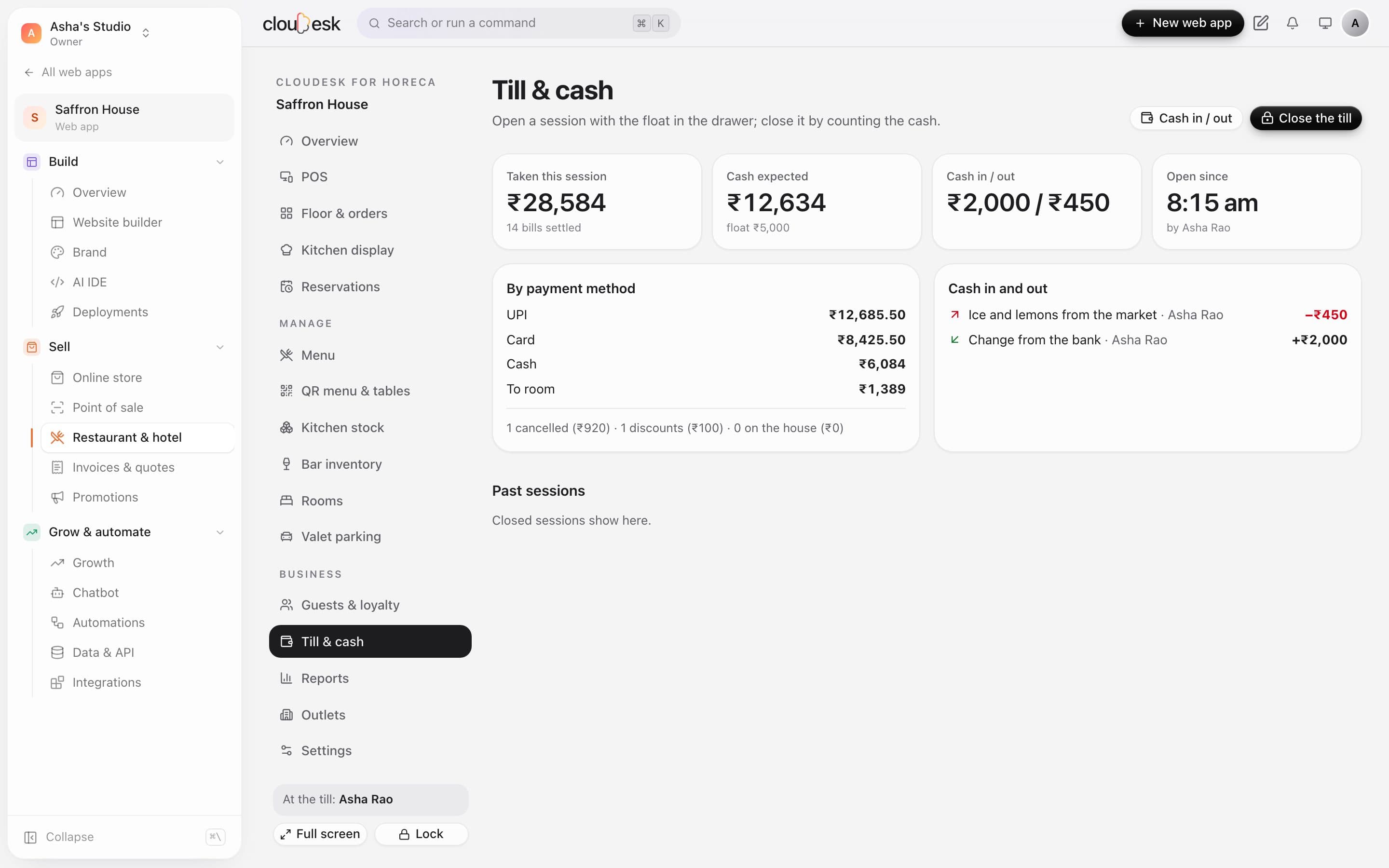
    Start the session with the float in the drawer. Cash in and out is recorded with a reason, and at closing you count the notes — Cloudesk shows what should be there, the difference, and prints a Z report.

    • Takings by payment method
    • Pay-outs need a manager
    • Cancellations, discounts and comps for the shift
    • Past sessions kept
    The open till: takings, cash expected, cash in and out with reasons
  12. 12Reports

    Every number from settled bills.

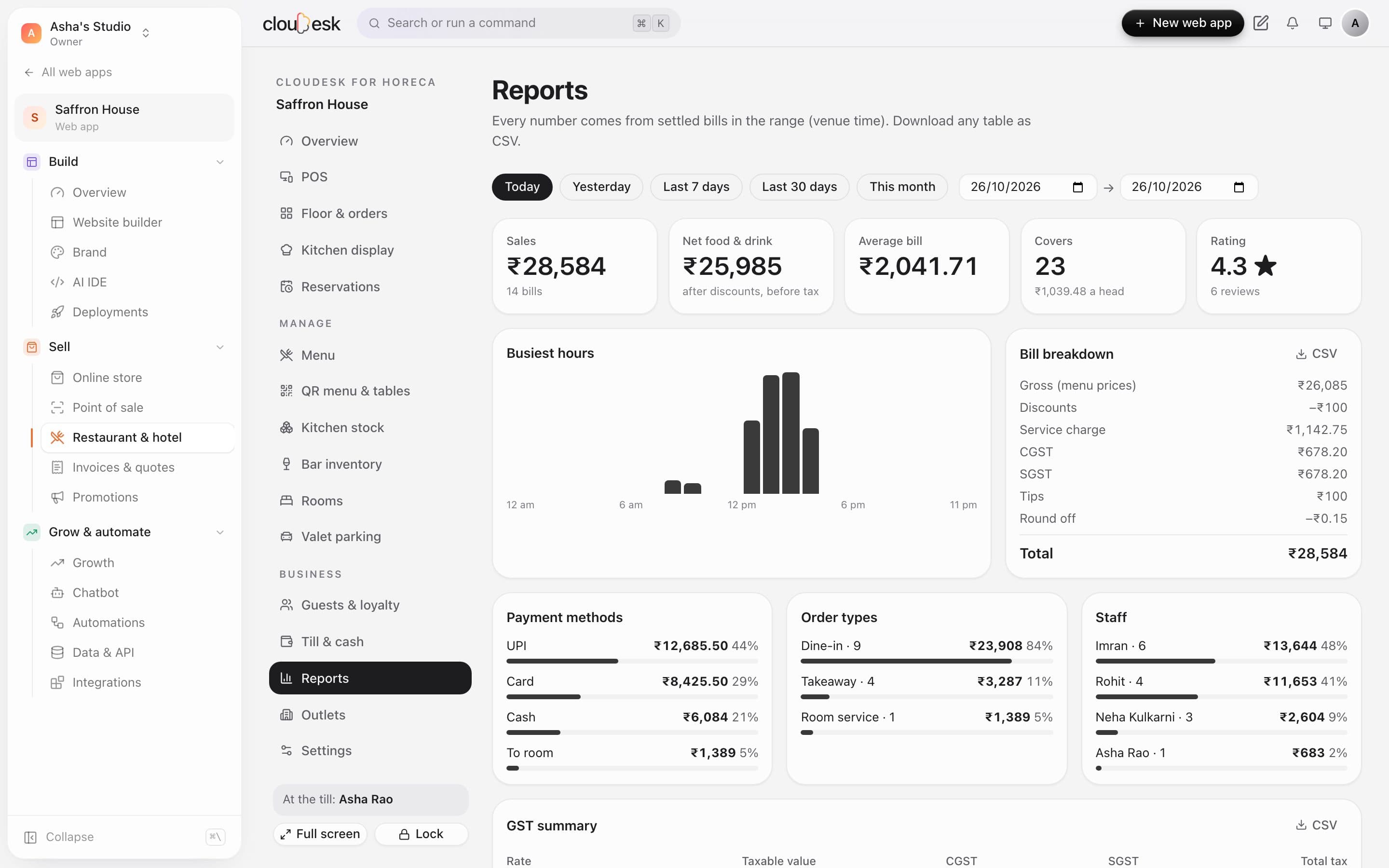
    Pick a day, a week or any range. See sales, covers, GST by rate, payment methods, order types, busiest hours, best dishes, staff and every cancellation — and download any table as CSV for your accountant.

    • GST summary split into CGST and SGST
    • Sales by staff member
    • Voids, comps and discounts with reasons
    • Every outlet in the workspace side by side
    Today's report: sales, busiest hours, bill breakdown, payments, order types and staff
  13. 13Room bookings

    Bookings, check-in and the guest's folio.

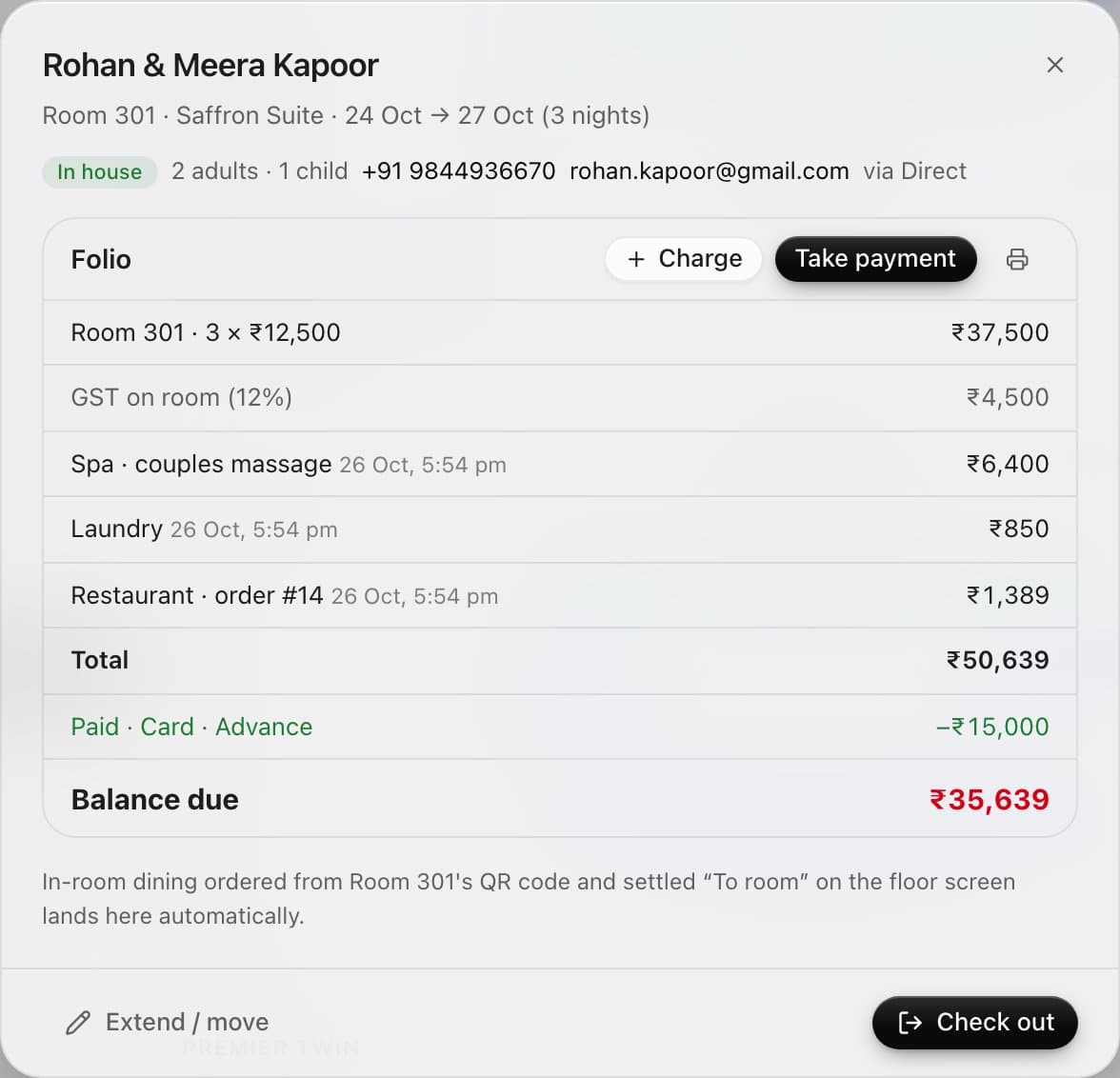
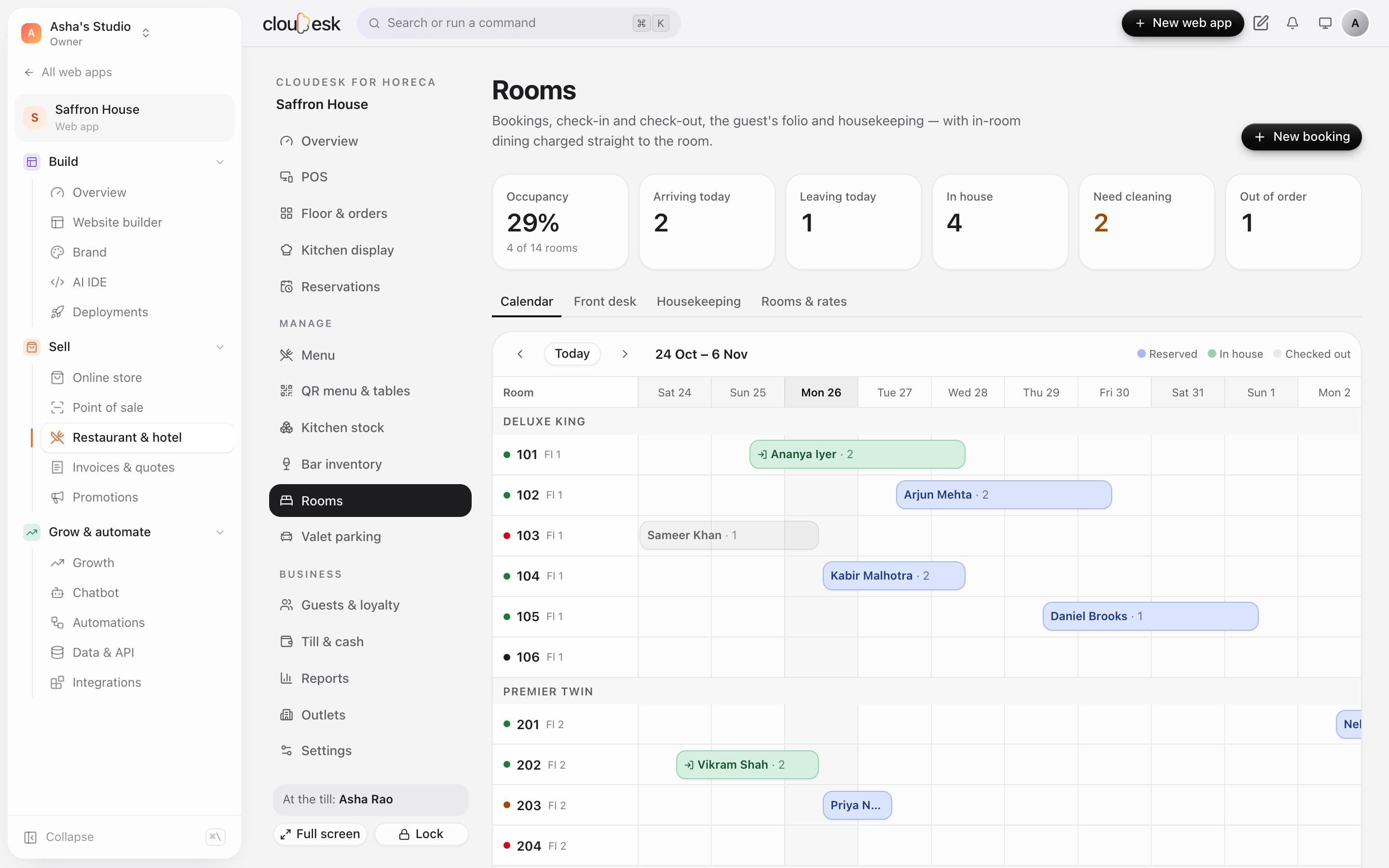
    See every room on a calendar, book only what's free, check guests in and out, and keep one folio with room nights, room GST, extras, room service and advances.

    • Availability by room type and dates
    • Checkout warns while money is still due
    • Arrivals, departures and in-house lists
    • Print the folio for the guest
    The booking calendar with reserved and in-house guests across two weeks
  14. 14Housekeeping

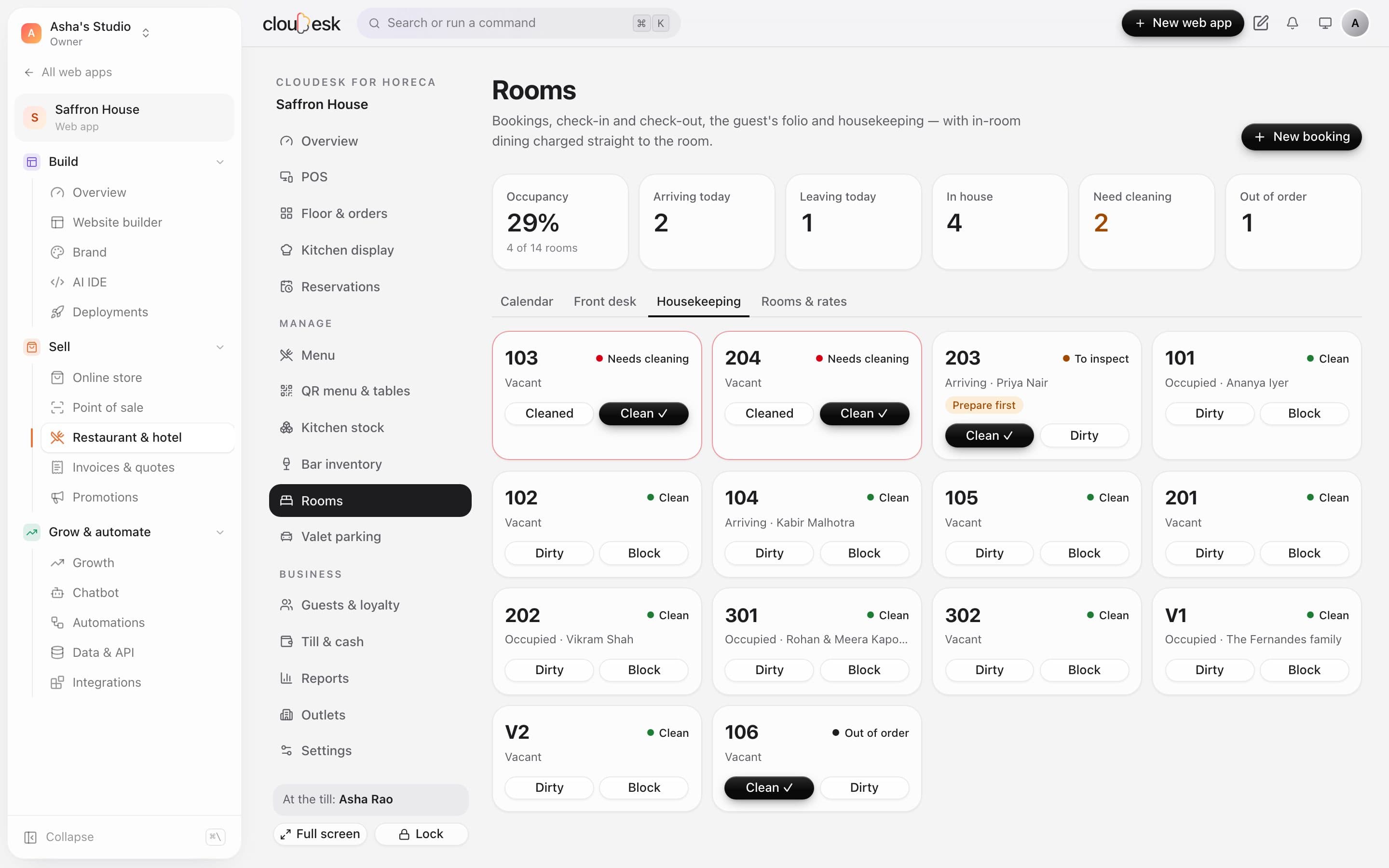
    Rooms turn dirty at checkout — and clean on a tap.

    Checkout marks the room for cleaning. Housekeeping moves it to inspect and clean, and a room with a guest arriving today is flagged until it's ready.

    • Clean, needs cleaning, to inspect, out of order
    • Check-in warns if the room isn't clean
    • Each room gets its own in-room dining QR
    The housekeeping board with each room's state and who's in it
  15. 15Bar inventory

    Every peg comes out of stock by itself.

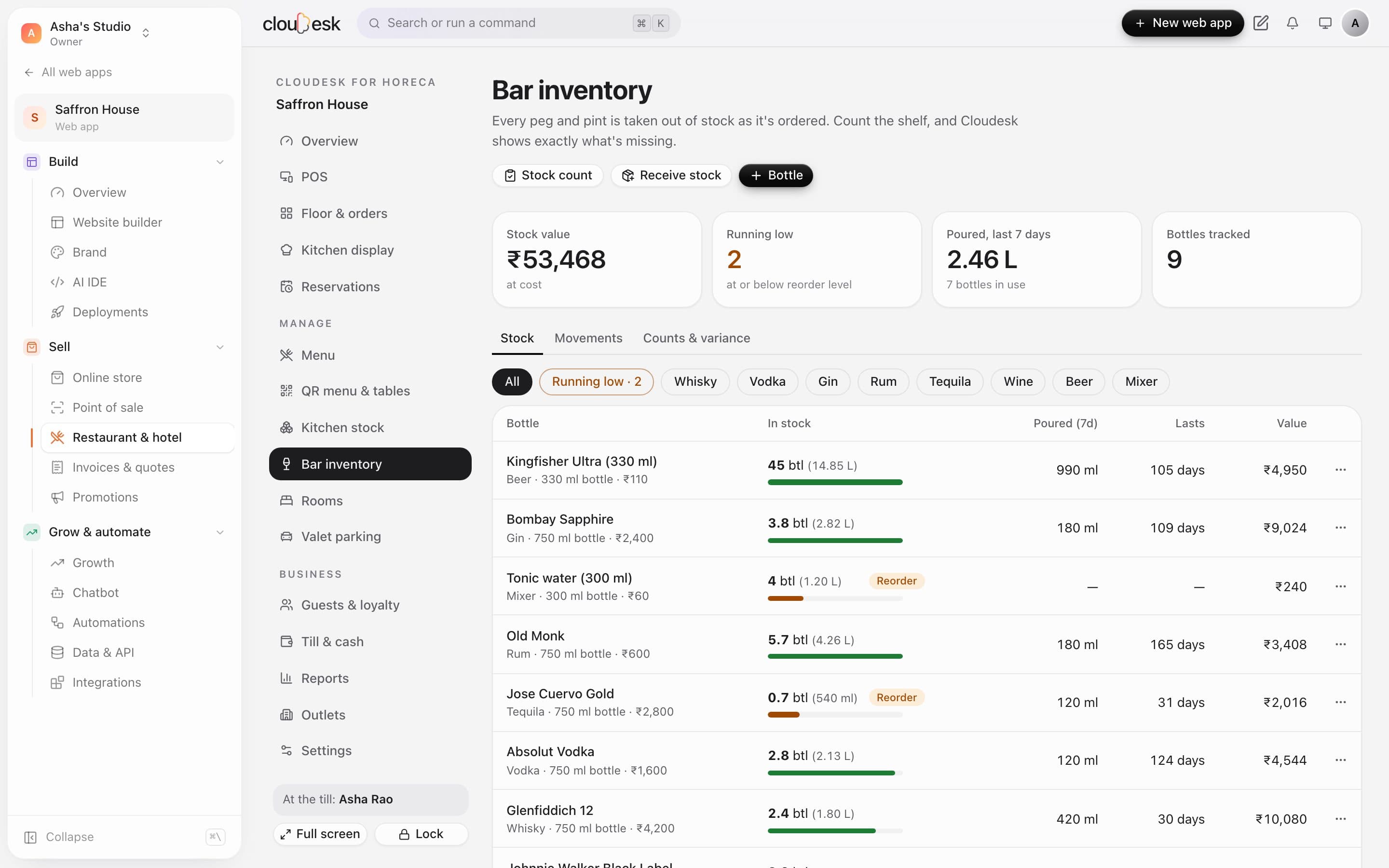
    Link a drink to its bottle and pour size, and each one sold deducts the millilitres. See stock in bottles, what was poured this week and how many days it'll last.

    • Purchases in bottles, wastage in ml
    • Reorder levels with a Running low filter
    • Cancelling a drink puts the pour back
    Bar stock by bottle with pours over 7 days and days left
  16. 16Stock counts

    Count the shelf. See what went missing.

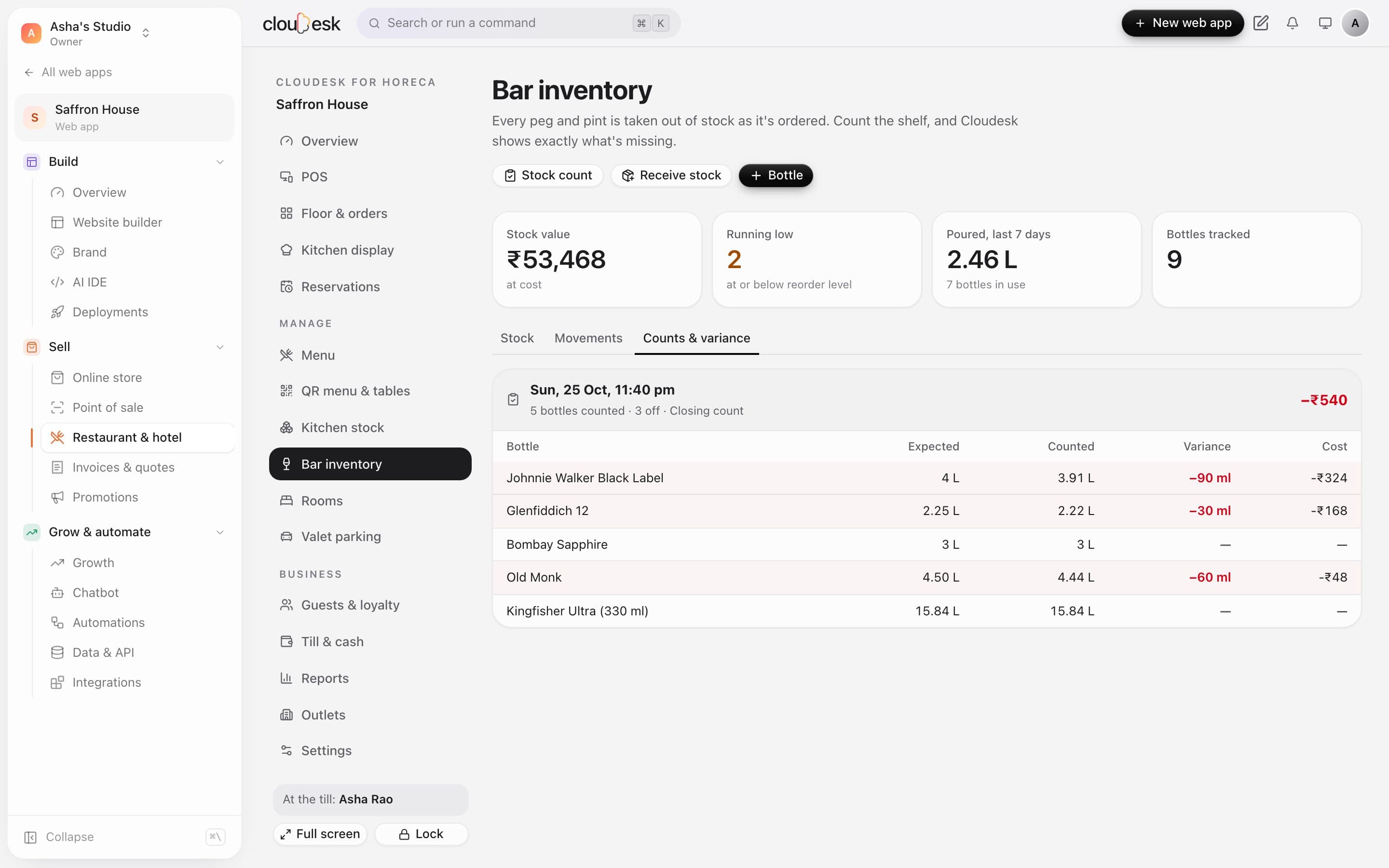
    Enter full bottles and an estimate of the open one. Cloudesk compares it with what should be there and shows the variance in millilitres and money.

    • Review before you save
    • Stock is set to what you counted
    • Every count is kept, with its cost
    A closing count showing 90 ml of whisky missing and the cost of the variance
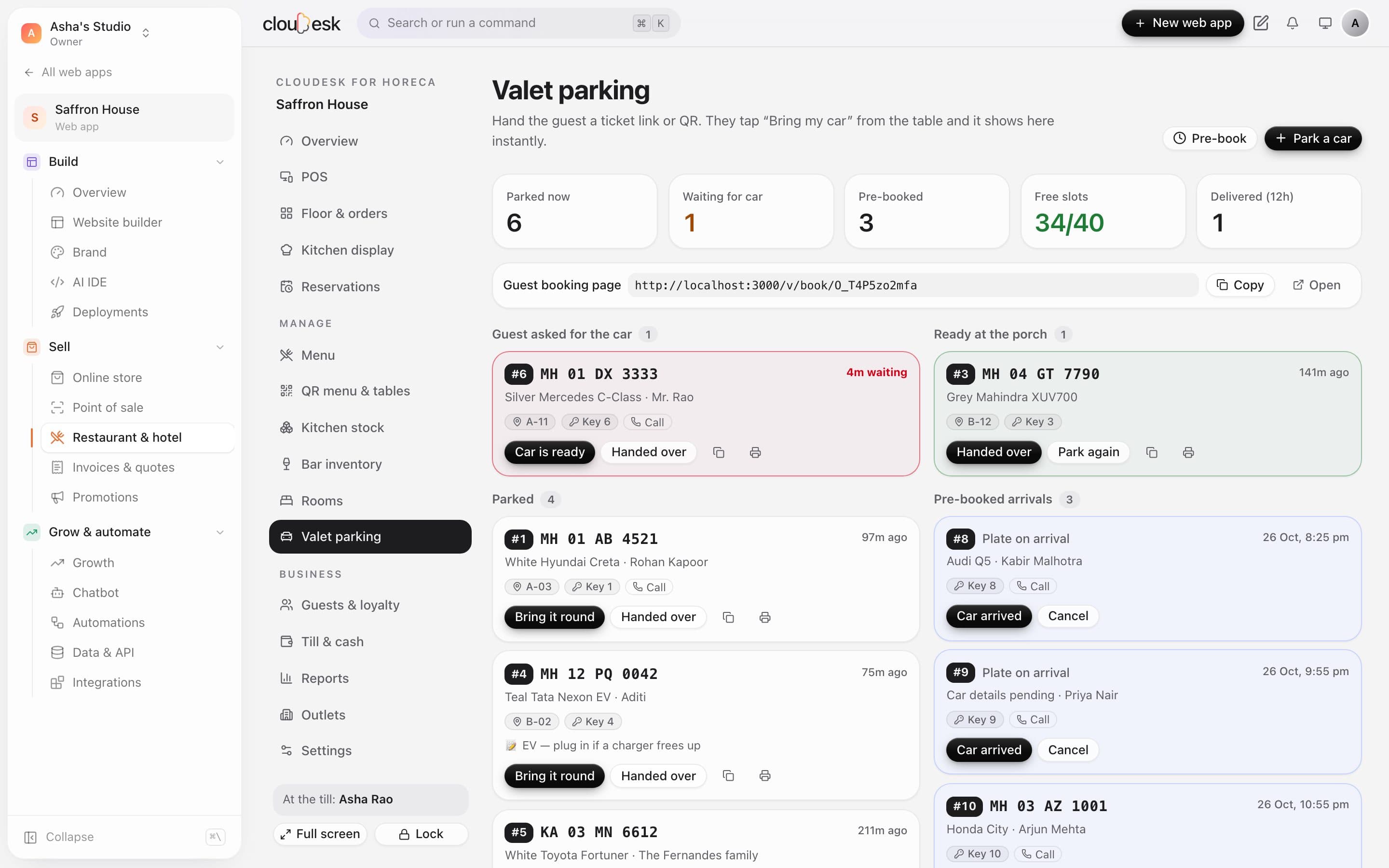
  17. 17Valet parking

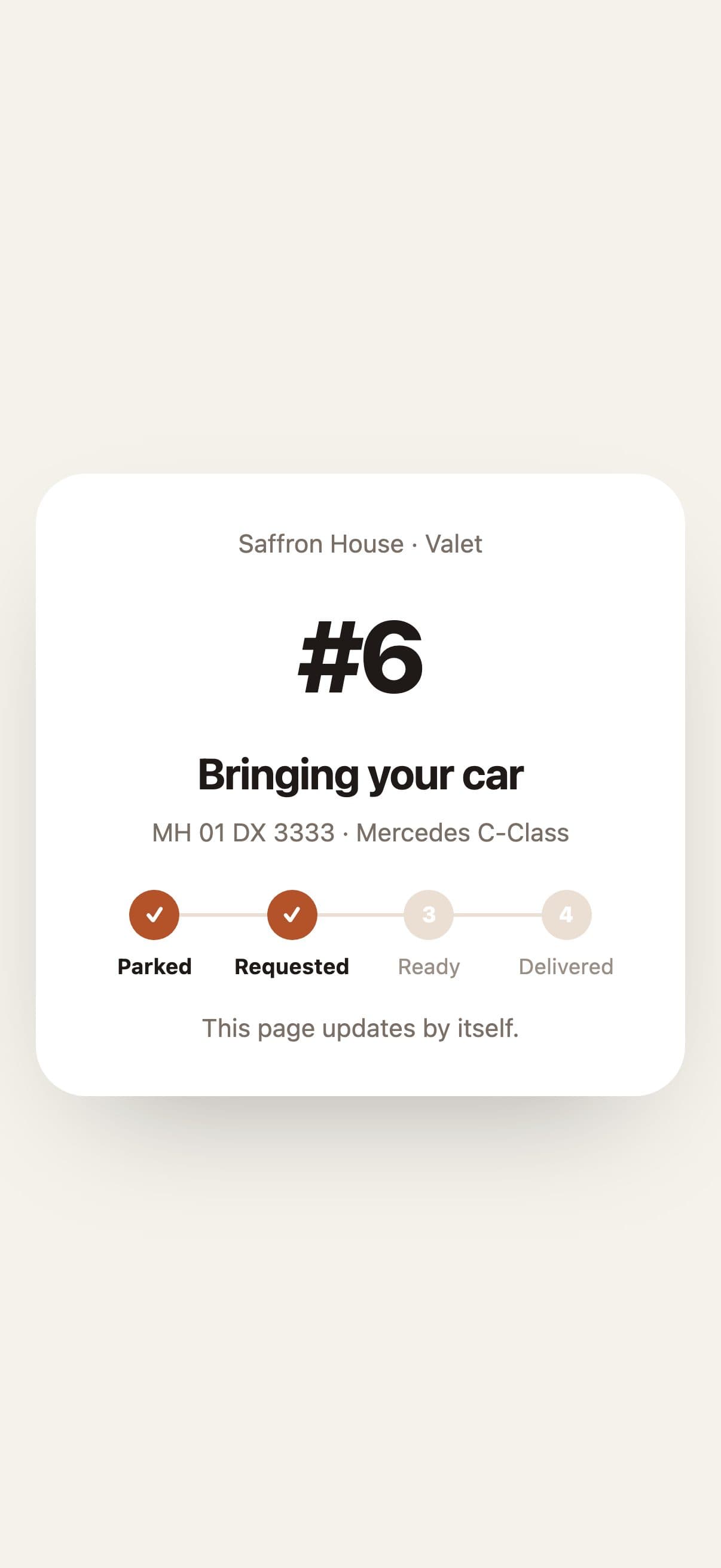
    “Bring my car” — from the guest's phone.

    Issue a ticket with plate, slot and key tag. The guest keeps a link or printed QR and taps once when they're leaving; it jumps to the top of your board.

    • Parked, requested, ready and delivered
    • Guests pre-book valet from a link
    • Free slots at a glance
    The valet board with a requested car, a ready car, parked cars and pre-bookings

In detail

What you get with Cloudesk for Horeca

A real full-screen POS

Dine-in, takeaway, delivery and room service. Tap dishes or type a short code, add covers and the customer, hold tickets, print the KOT, bill and take payment — split, part-paid or with points.

Good to know

We'd rather be upfront than surprise you later:

  • The lock screen locks this screen for your staff; the Cloudesk account behind it stays signed in.
  • One till session is open per venue at a time — not one per terminal.
  • Refunds after a bill is paid aren't built yet; cancel dishes or the order before payment.
  • Bills, KOTs, folios and table tents print from the browser — there's no direct link to thermal printers yet.
  • UPI on the QR menu opens the guest's UPI app for the exact amount; you confirm the payment. Card payments are taken on your own machine.
  • No Swiggy or Zomato integration, no OTA sync for rooms, and no SMS or WhatsApp alerts yet.

Questions people ask

Do I need a separate POS?+

No. The Horeca POS takes dine-in, takeaway, delivery and room-service orders, prints KOTs and bills, and takes payment — on any tablet or computer with a browser.

Can a waiter cancel a dish on their own?+

Not once it's gone to the kitchen. A manager or owner approves it — at the till, or by typing their PIN — and the reason is recorded.

Do guests need an app?+

No. They scan the QR code with their camera and the menu opens in the browser — ordering, tracking the order and asking for the bill all work there.

Can I split a bill?+

Yes — take part of it by one method and the rest by another, split it equally, or split chosen dishes onto a new check.

Does it work for a small café?+

Yes. Rooms, bar, valet, stock, reservations and loyalty are sections you can switch off, so a café sees just the POS, menu and kitchen.

We have several outlets. Can we see them together?+

Yes. Each outlet is its own project with its own menu, staff and stock, and Outlets shows today's numbers for all of them. You can copy a menu from one to another.

Works beautifully with

Give it a spin — it's free to start.

Next up: Cloudesk CRM →

Start free